Creating Playlists and Adding Tracks
Create playlists in Music Speed Changer for Android, add songs, albums or several tracks at once, and rearrange, rename or delete playlists.

Playlists let you organize tracks into lists you can play in order. Music Speed Changer also imports playlists created by other music apps on your device automatically, and you can export your playlists for use in other apps.
Creating a Playlist
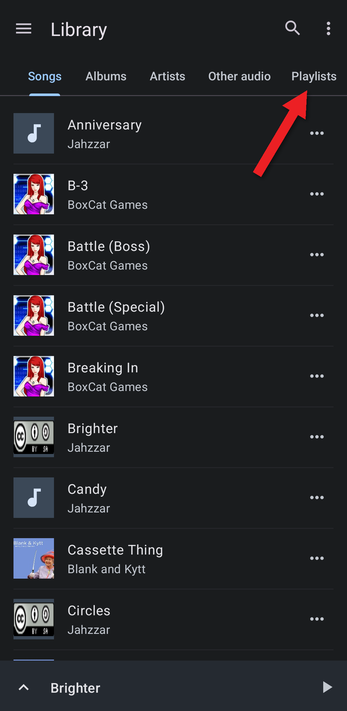
- In the Library, tap the Playlists tab (swipe the tabs to the left if you can't see it).
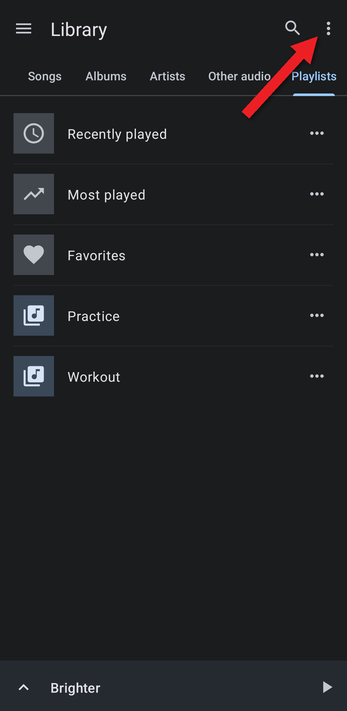
- Tap the ⋮ menu at the top right. The Playlists tab starts with three automatic playlists: Recently played, Most played and Favorites.
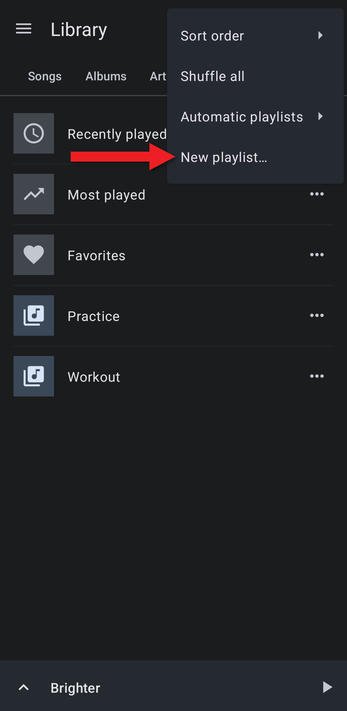
- Tap New playlist…. This menu also lets you change the sort order, shuffle all your playlists, and choose which automatic playlists to show.
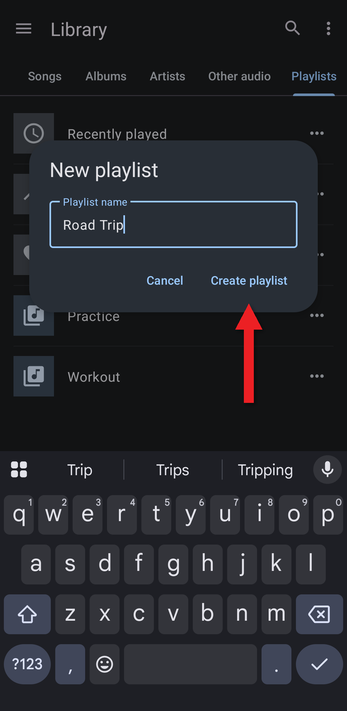
- Type a name and tap Create playlist.
Adding Tracks to a Playlist
You can add tracks from every tab in the Library, and from the editor.
Adding a Song
- Tap the … button next to a song.
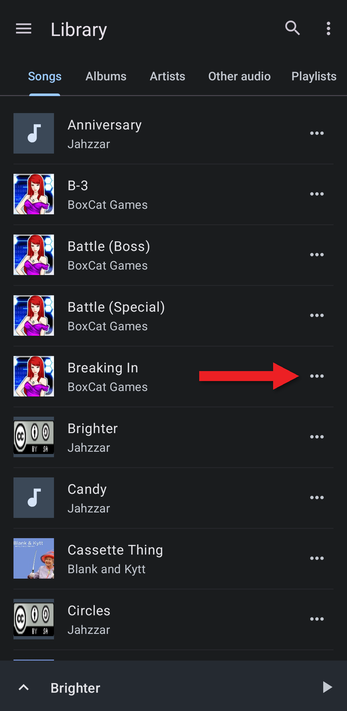
- Tap Add to playlist….
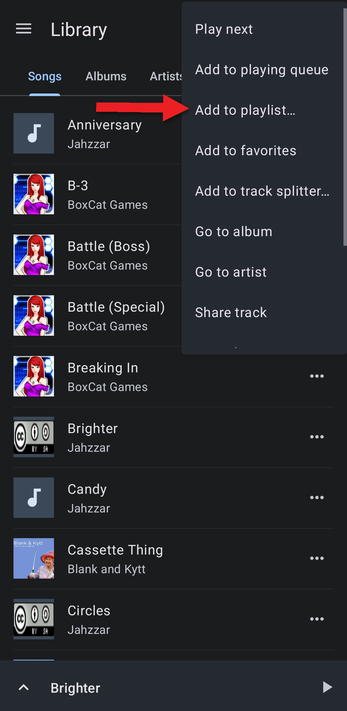
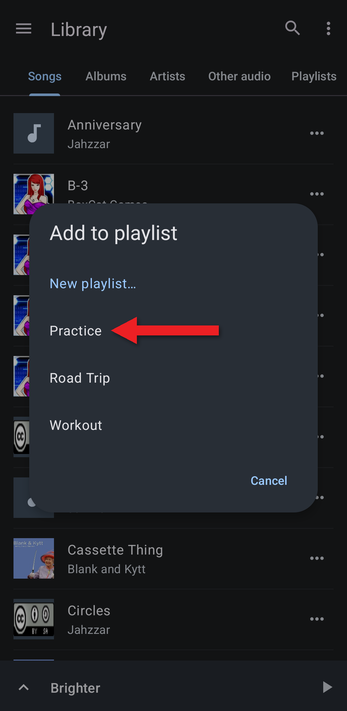
- Tap the playlist to add the song to, or tap New playlist… to create one.
Adding an Album, an Artist or Another Playlist
To add a whole album, open the Albums tab, tap the album's … button and choose Add to playlist….
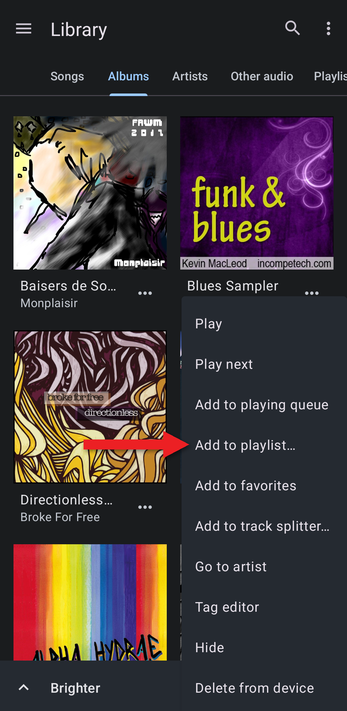
To add all of an artist's songs, do the same on the Artists tab.
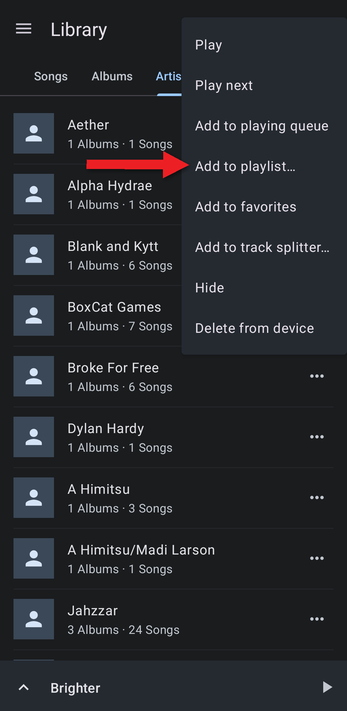
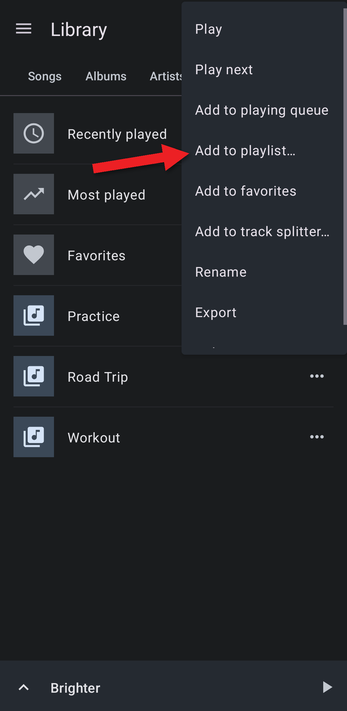
You can even add all the songs in one playlist to another: on the Playlists tab, tap the playlist's … button and choose Add to playlist….
Adding Several Songs at Once
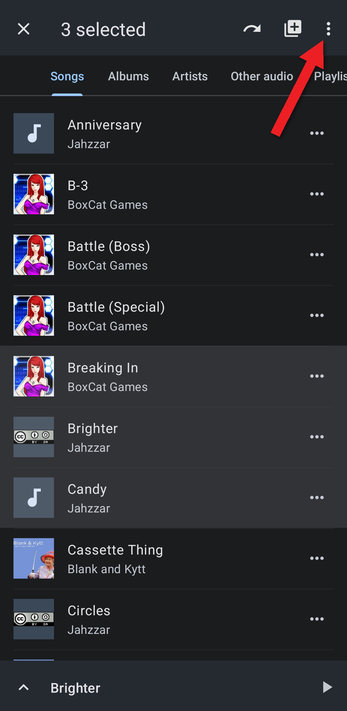
- Long-press a song to select it, then tap any other songs you want to add. The top bar shows how many songs are selected. Then tap the ⋮ menu.
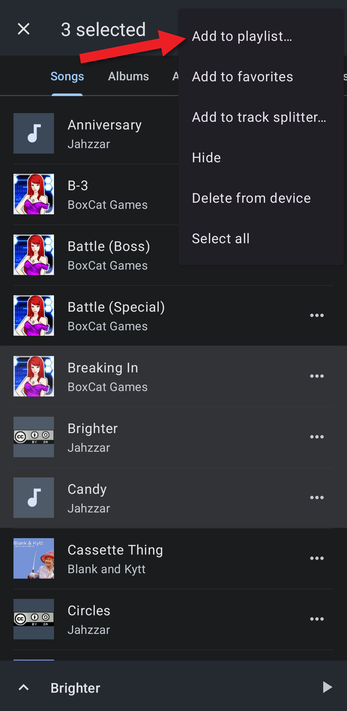
- Tap Add to playlist… and choose a playlist.
Adding the Playing Track from the Editor
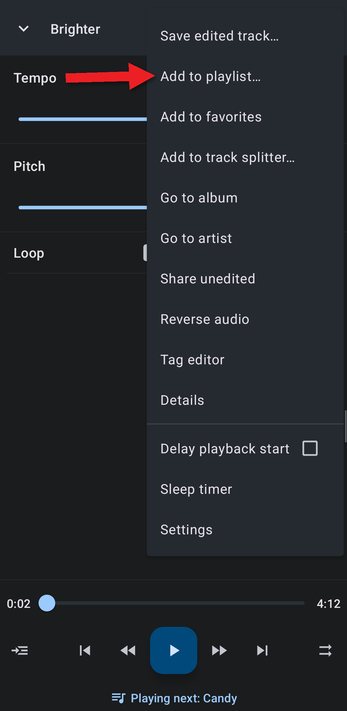
In the editor, tap the ⋮ menu and choose Add to playlist….
Rearranging a Playlist
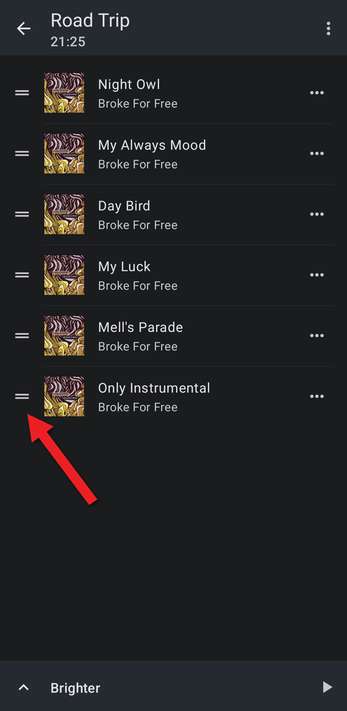
Open the playlist and drag a song up or down by the handle (≡) on the left of its row.
To remove a song, tap its … button and choose Remove from playlist. To rename or delete the whole playlist, tap the ⋮ menu inside the playlist (or the playlist's … button on the Playlists tab) and choose Rename or Delete.
How did we do?
Exporting and Importing Playlists
