The Playing Queue
Open and edit the playing queue in Music Speed Changer for Android: reorder tracks, remove them, and save the queue as a playlist.

Updated
by Steve Myers
The playing queue is the list of tracks Music Speed Changer will play, in order. When you play a song from a list, the rest of that list becomes the queue. You can rearrange it, remove tracks, and save it as a playlist.
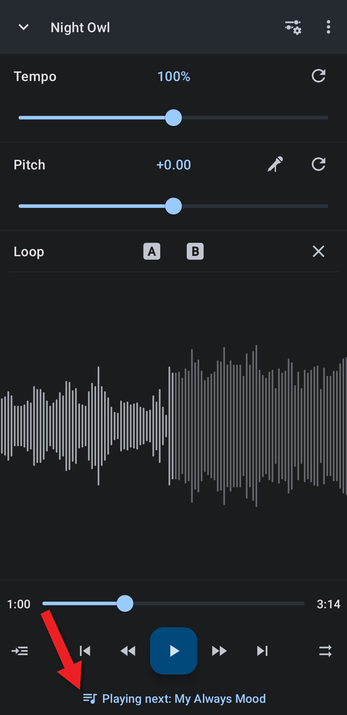
- In the editor, tap Playing next below the player controls.
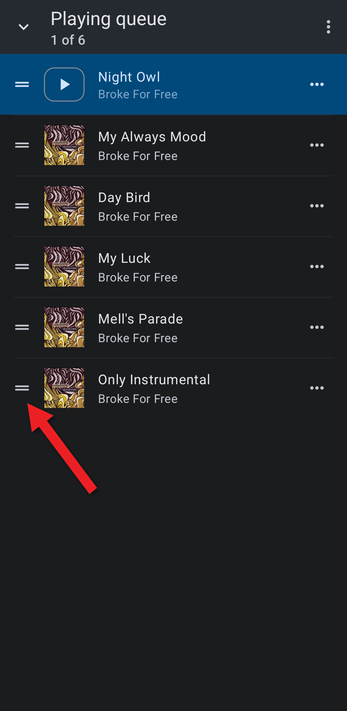
- The queue opens, with the current track highlighted. The number at the top shows the current track's position in the queue. To move a track, drag it by the handle (≡) on the left.
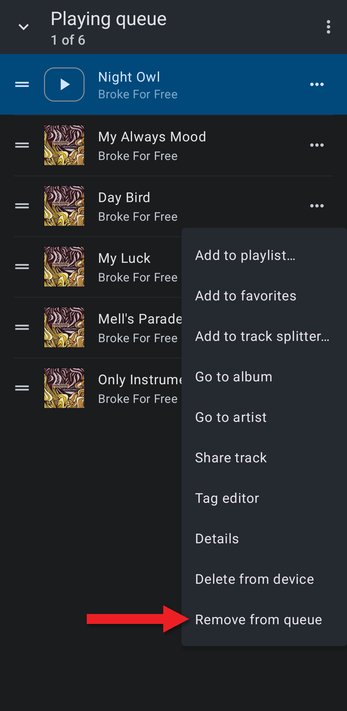
- Tap the … button next to a track for more options, including Remove from queue.
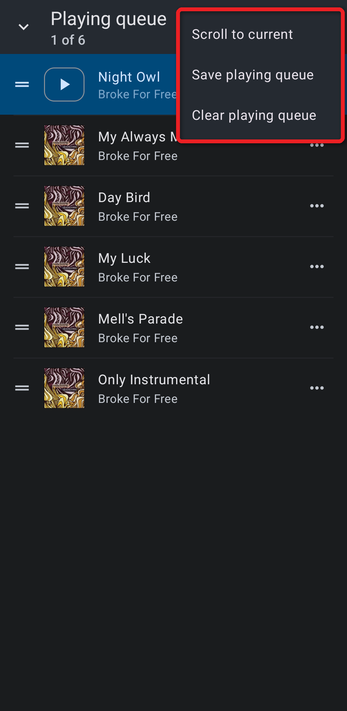
- Tap the ⋮ menu at the top right to jump to the current track (Scroll to current), save the whole queue as a new or existing playlist (Save playing queue), or empty it (Clear playing queue).
To add tracks to the queue, tap the … button next to a song, album, artist, playlist or folder and choose Play next or Add to playing queue. To play the queue in random order or repeat it, see Player Controls: Play Mode, Shuffle and Seek Buttons.
How did we do?
Player Controls: Play Mode, Shuffle and Seek Buttons
Formant Correction for Natural-Sounding Pitch Shifts
