Hiding Tracks and Folders
Hide songs, folders and short clips like ringtones from Music Speed Changer for Android, and unhide them any time.

You can hide tracks and folders you don't want to see in Music Speed Changer, such as ringtones, voice notes or audiobooks. Hidden tracks stay on your device; they just don't appear anywhere in the app until you unhide them. The app can also hide short audio clips automatically.
Hiding a Track
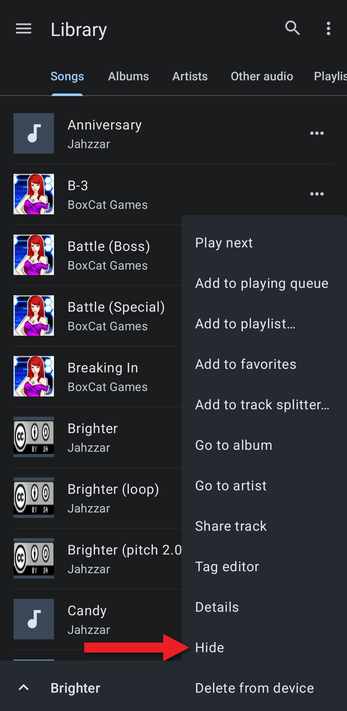
Tap the … button next to a track and choose Hide. The track disappears from every list in the app. You can also hide a whole album or artist from its … menu, or several selected songs at once.
Hiding Everything in a Folder
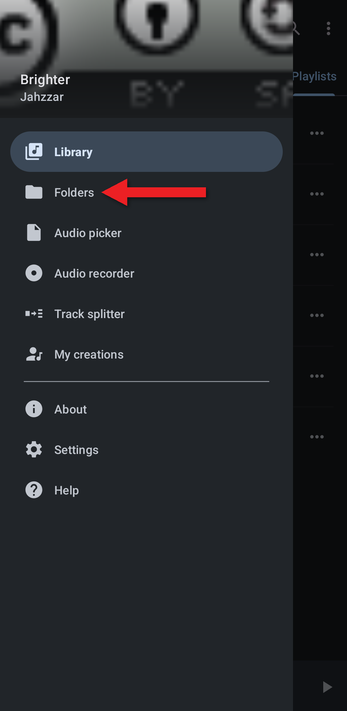
- Open the app menu (☰) and tap Folders.
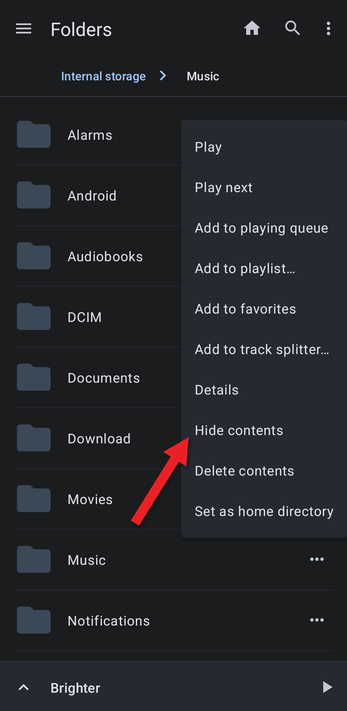
- Tap the … button next to the folder and choose Hide contents. The folder is still listed, but its tracks are hidden.
Unhiding Tracks
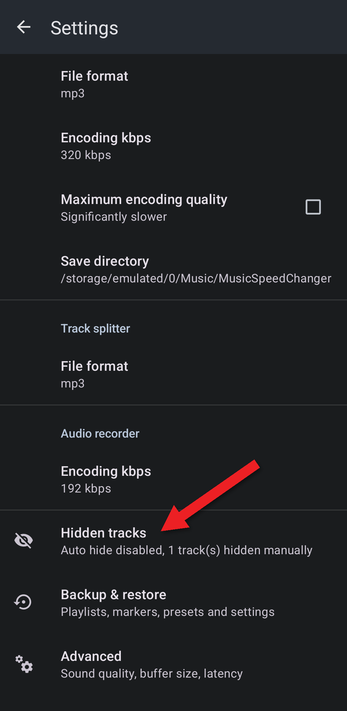
- Open Settings, scroll near the bottom, and tap Hidden tracks.
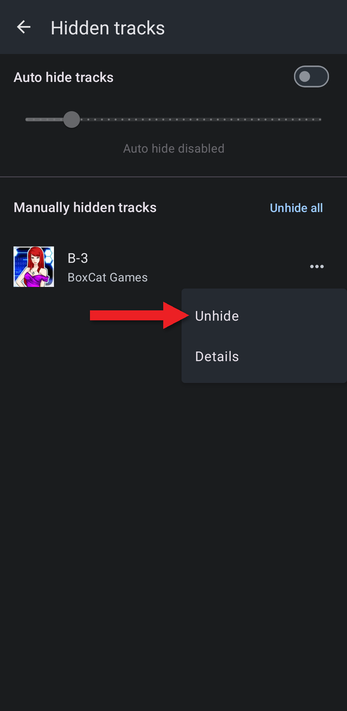
- Under Manually hidden tracks, tap the … button next to a track and choose Unhide. To unhide everything, tap Unhide all twice.
Hiding Short Clips Automatically
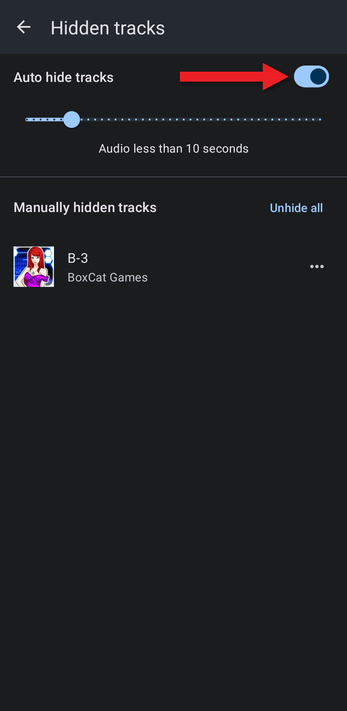
On the Hidden tracks screen, turn on Auto hide tracks, then use the slider to choose a length from 1 to 60 seconds (10 seconds by default). Any audio shorter than that is hidden automatically, which keeps notification sounds and other short clips out of your library.
To permanently delete a file instead of hiding it, see Deleting Tracks.
How did we do?
Editing Track Info and Artwork with the Tag Editor
Deleting Tracks
