Editing Track Info and Artwork with the Tag Editor
Edit song titles, artists, albums, years and artwork with the tag editor in Music Speed Changer for Android.

Updated
by Steve Myers
The tag editor lets you change a track's title, album, artist, genre, year, track number and artwork, or an album's details and cover art. It's useful for giving your recordings and edited tracks proper names.
Editing a Track
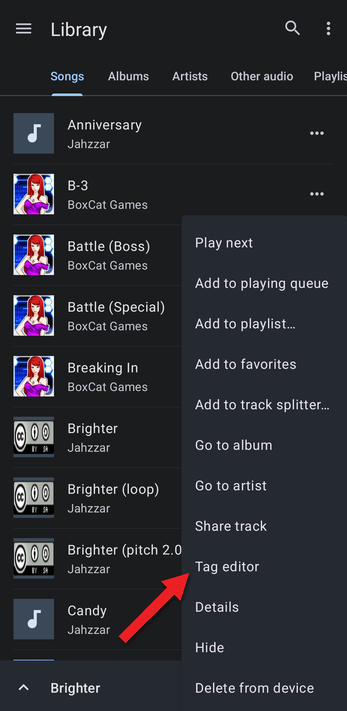
- Tap the … button next to the track (on the Songs tab, in a playlist, in Folders or in My creations) and choose Tag editor. You can also choose Tag editor from the editor's ⋮ menu.
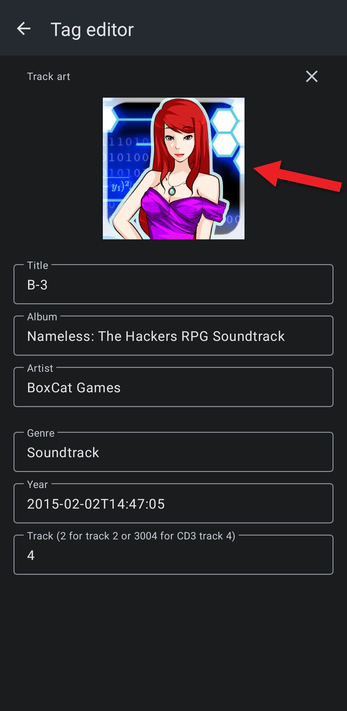
- Change any of the fields: Title, Album, Artist, Genre, Year and Track. To change the artwork, tap the picture and choose an image from your device; to remove it, tap the X next to Track art.
- Tap the save button at the bottom right. It appears as soon as you change something.
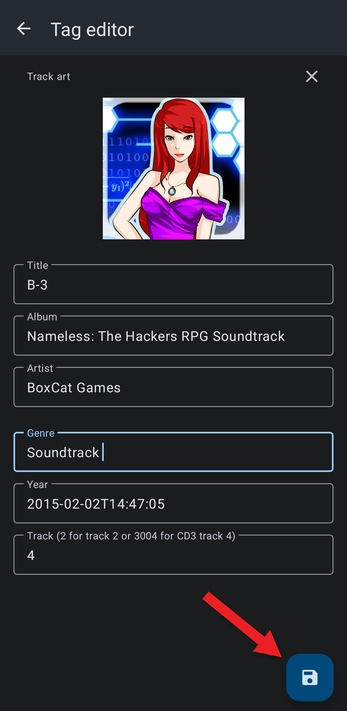
If you leave the tag editor without tapping save, your changes are discarded. On newer versions of Android, the system may ask you to allow Music Speed Changer to modify the file.
Editing an Album
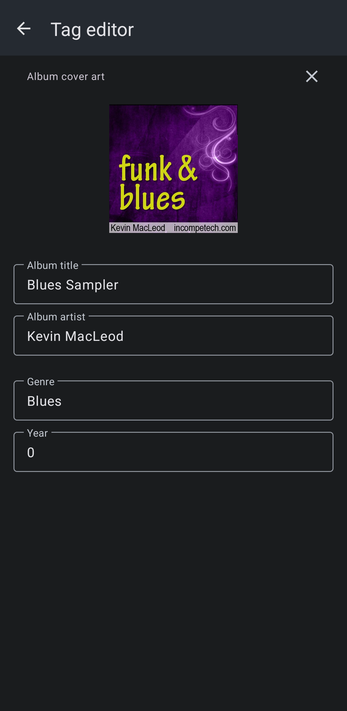
On the Albums tab, tap the album's … button and choose Tag editor. Here you can change the album cover art, album title, album artist, genre and year for the whole album.
How did we do?
Browsing Folders
Hiding Tracks and Folders
