Saving Edited Tracks
Save a song with your tempo, pitch, equalizer and effect changes as a new audio file in Music Speed Changer for Android, or save just a loop.

Music Speed Changer can save a track with your current pitch, tempo, equalizer, effects and other adjustments as a new audio file, which you can then play, share or use in other apps. The original file isn't changed.
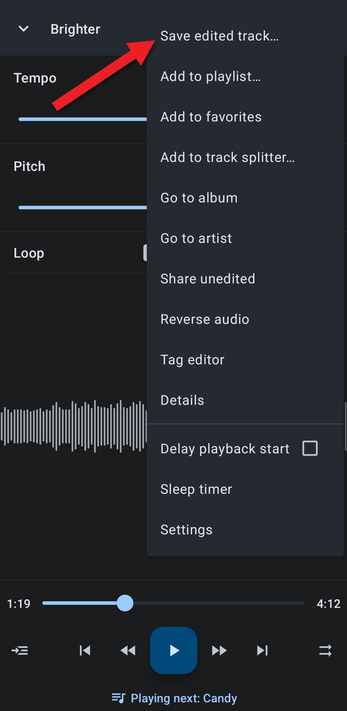
- In the editor, tap the ⋮ menu at the top right and choose Save edited track….
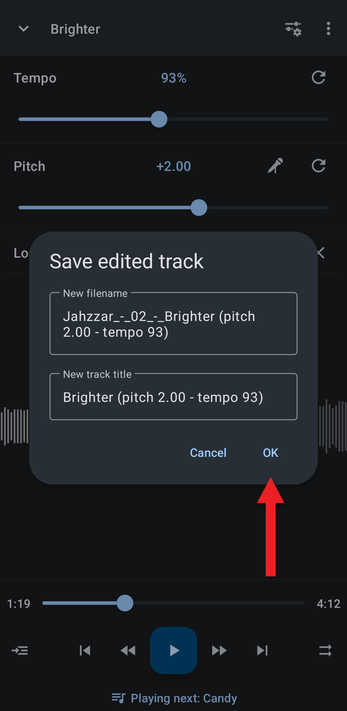
- The new file name and track title are filled in for you, including the pitch and tempo you used. Change them if you like, then tap OK.
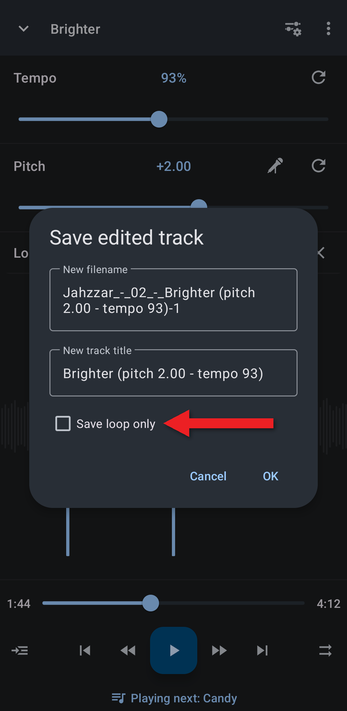
To save only the looped part of the track, set the A and B loop points first, then tick Save loop only in this dialog. The checkbox only appears while a loop is set. See Setting and Editing A/B Loop Points.
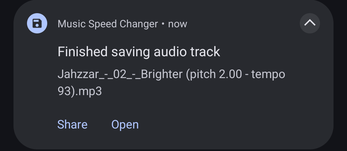
- The track is saved in the background, and you can keep using the app. When it's finished, a notification appears with Share and Open buttons.
Your saved tracks are listed in My Creations. By default they're saved in the Music/MusicSpeedChanger folder on your device.
Changing the Save Options
In Settings, under Save edited track, you can choose the file format (MP3, WAV or FLAC), the MP3 bitrate, the encoding quality and the folder new files are saved in. See Save Settings: File Format, Quality and Save Location.
How did we do?
Save Settings: File Format, Quality and Save Location
