Setting and Editing A/B Loop Points
Loop a section of a song with A/B loop points in Music Speed Changer for Android, fine-tune the times, move the loop, and save just the loop.

An A/B loop repeats a section of a track over and over, which is ideal for practicing a difficult passage or learning a dance routine.
Setting a Loop
- Open the editor by tapping the bar at the bottom of the screen.
- When playback reaches the point where you want the loop to start, tap A.
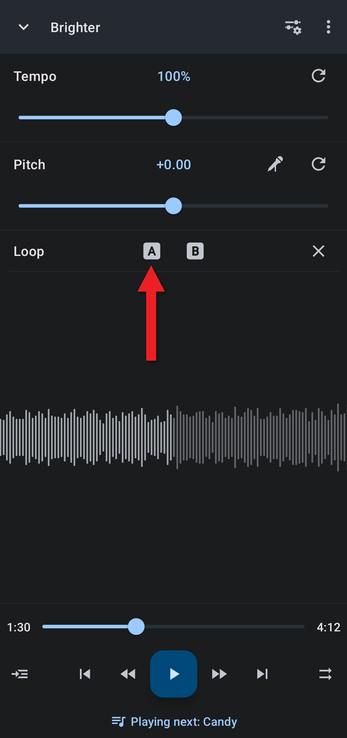
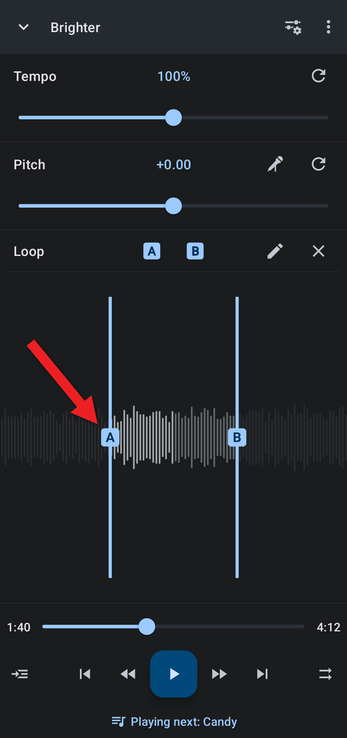
- When it reaches the point where you want the loop to end, tap B. The A and B points appear on the waveform, and the section between them now loops continuously.
Clearing a Loop
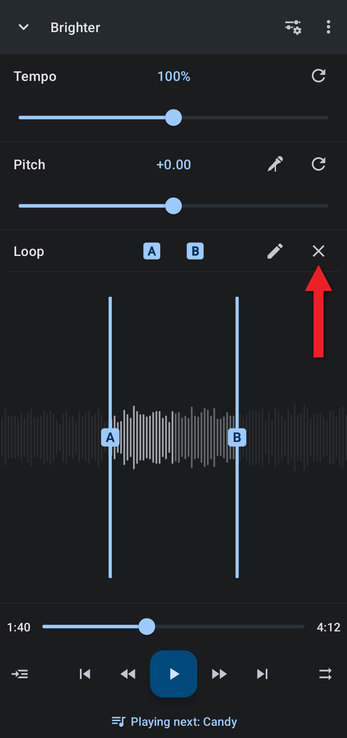
Tap the X at the end of the Loop row. The track keeps playing from where it is, without looping.
Fine-Tuning the Loop Points
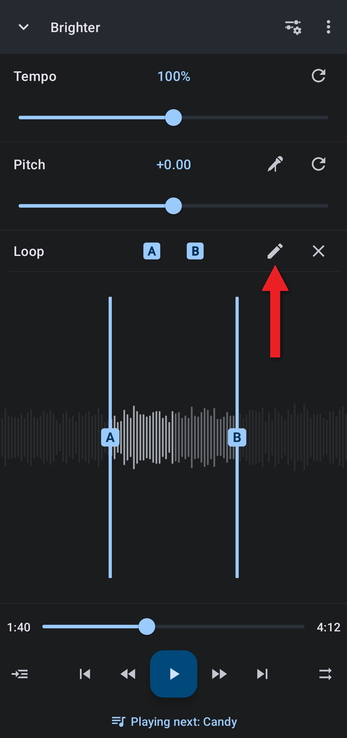
Once a loop is set, an edit (pencil) button appears in the Loop row. Tap it to open Edit loop points.
Moving the Whole Loop
The two buttons at the top right of Edit loop points move both A and B back or forward by exactly one loop length. For example, with a 30-second loop, the forward button moves both points 30 seconds later. This is handy for working through a song section by section.
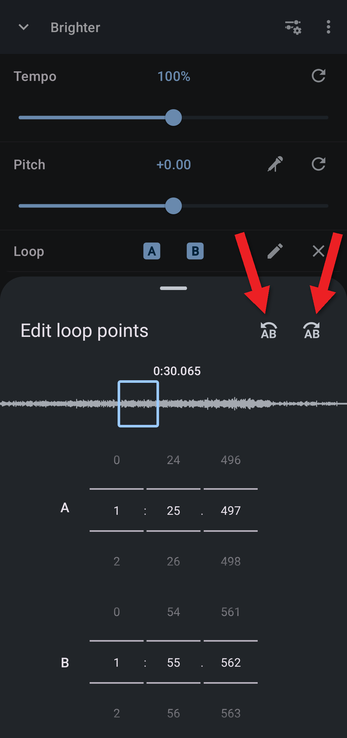
Setting Exact Times
Scroll the minutes, seconds and milliseconds of the A and B rows to set each point precisely. The loop length is shown above the overview waveform. Swipe the sheet down when you're done.
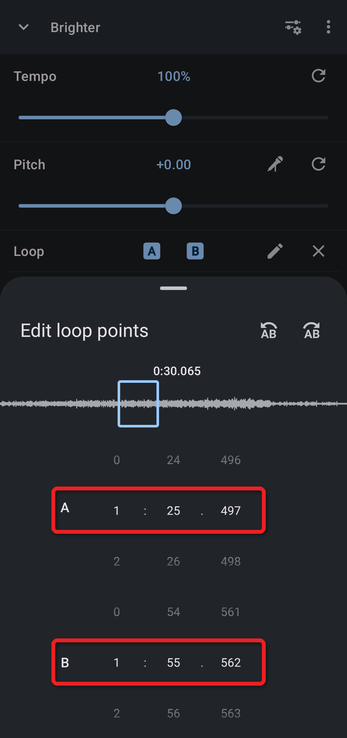
Saving Just the Loop
To save only the looped section as a new file, tap the ⋮ menu, choose Save edited track…, and tick Save loop only. The checkbox only appears while a loop is set. See Saving Edited Tracks.
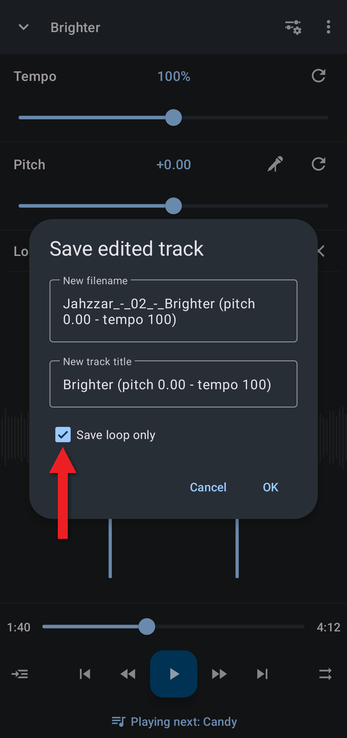
Related Articles
- Working with Markers: markers remember important points in each track, and you can turn any marker into a loop point.
- Snapping Loops and Markers to the Beat
How did we do?
Joining Pitch and Tempo into Rate
Working with Markers
