Working with Markers
Use markers in Music Speed Changer for Android to bookmark parts of a song, name them, jump between them and turn them into A/B loop points.

Markers are bookmarks you set at important points in a track, such as the start of a verse or a solo. The app remembers them for each track, so you can jump straight back to them later, give them names, and turn them into A/B loop points.
Showing the Markers
In the editor, tap the Editor components button (the sliders icon at the top right) and choose Markers.
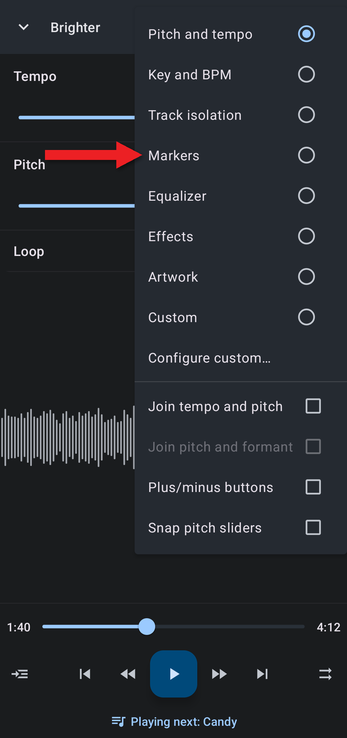
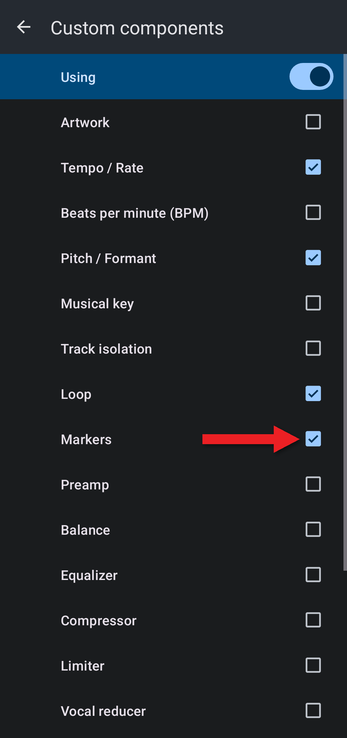
To use markers together with other controls, add them to your custom layout instead: choose Configure custom…, turn on the switch at the top so it reads Using, and tick Markers.
Adding Markers
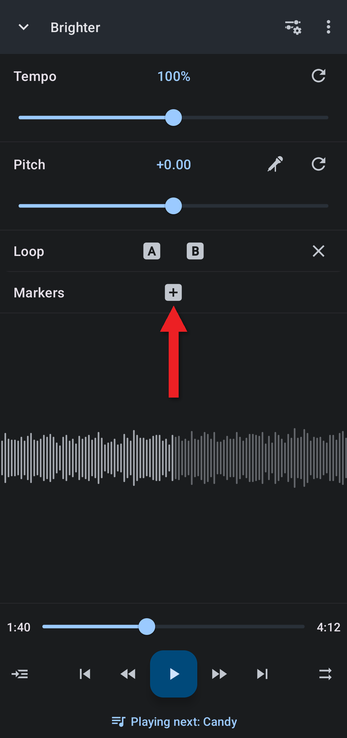
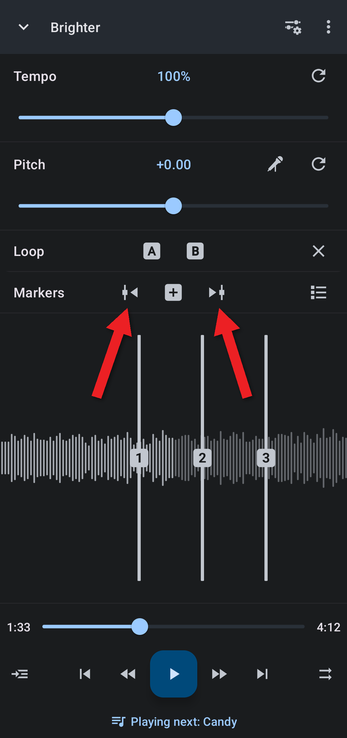
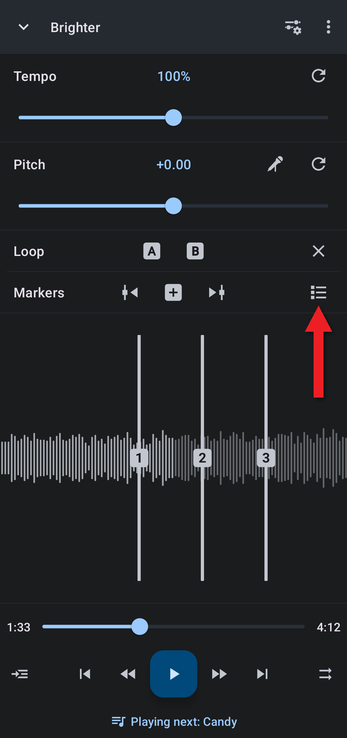
Tap + in the Markers row to add a marker at the current playback position. Markers appear on the waveform as numbered lines.
Once you've added markers, the buttons on either side of + jump to the previous or next marker.
Editing Markers
Tap the list button at the right end of the Markers row to see all your markers. Tap a marker in the list to jump to it.
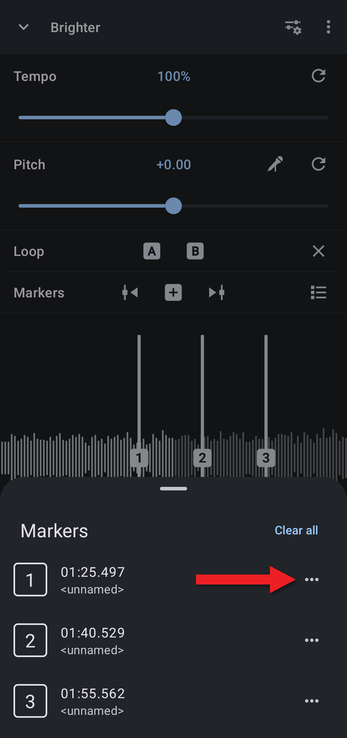
Each marker has its own menu. Tap the … button next to a marker to open it.
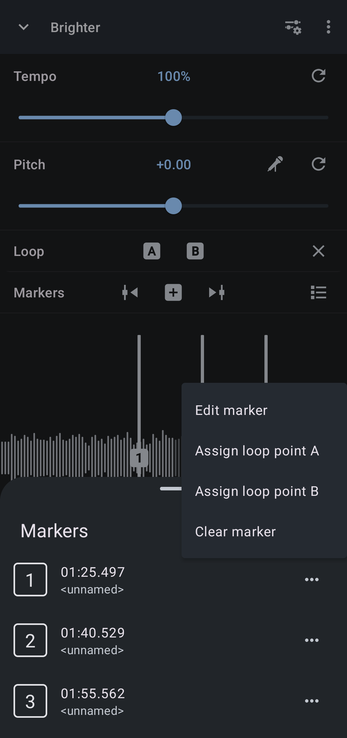
From the menu you can edit the marker, make it the start (A) or end (B) of the loop, or clear it.
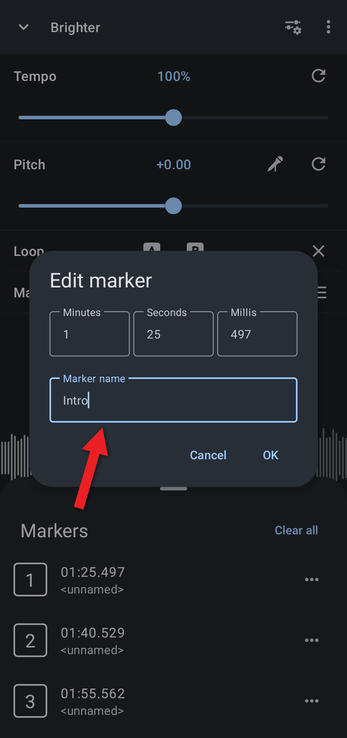
Choose Edit marker to give the marker a name or change its time, down to the millisecond.
Turning Markers into a Loop
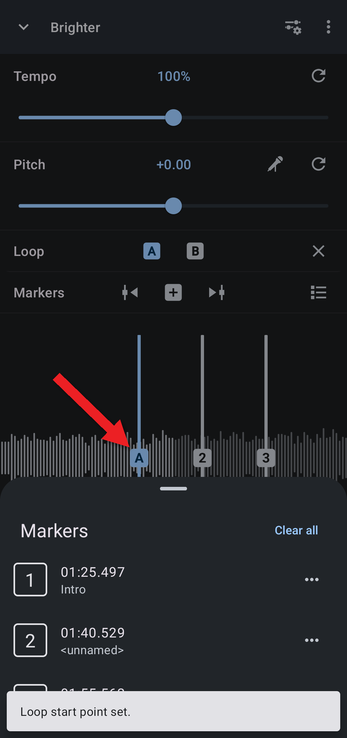
Choose Assign loop point A from a marker's menu to start the loop at that marker, and Assign loop point B on another marker to end it there. The marker's label on the waveform changes to A or B. See Setting and Editing A/B Loop Points.
Clearing All Markers
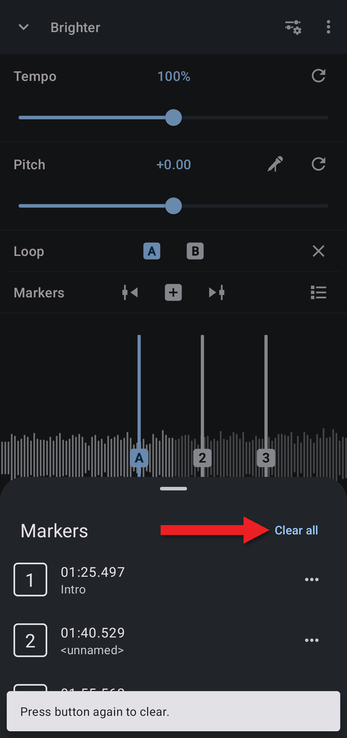
In the markers list, tap Clear all. To stop you clearing everything by accident, the app asks you to tap it a second time.
For more, watch the Editor Components Video.
How did we do?
Setting and Editing A/B Loop Points
Player Controls: Play Mode, Shuffle and Seek Buttons
