Save Settings: File Format, Quality and Save Location
Choose MP3, WAV or FLAC, the MP3 bitrate and the save folder for edited tracks in Music Speed Changer for Android.

You can choose how Music Speed Changer saves edited tracks: the file format, the quality, and the folder they're saved in.
- Open the app menu (☰) and tap Settings, or tap Settings in the editor's ⋮ menu.
- Scroll down to the Save edited track section.
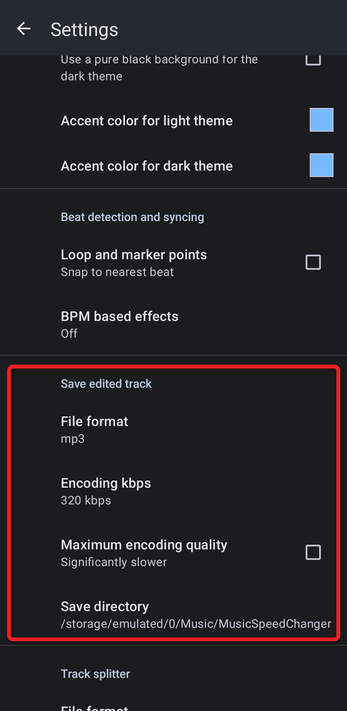
File Format
Tap File format and choose mp3 (the default), wav or flac. WAV and FLAC are lossless, so they give the best quality but make much larger files; MP3 files are smaller and play everywhere.
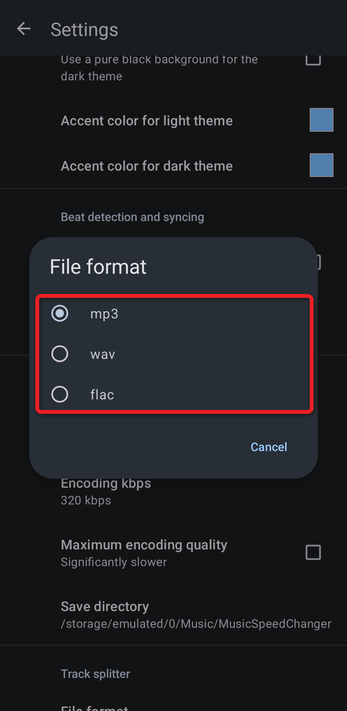
MP3 Quality
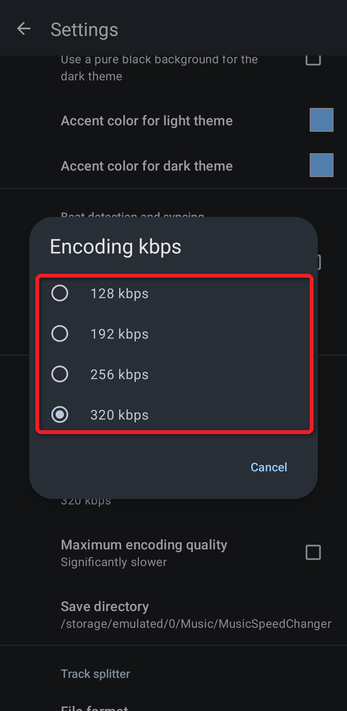
Tap Encoding kbps to choose the MP3 bitrate: 128, 192, 256 or 320 kbps (the default). Higher bitrates sound better and make bigger files.
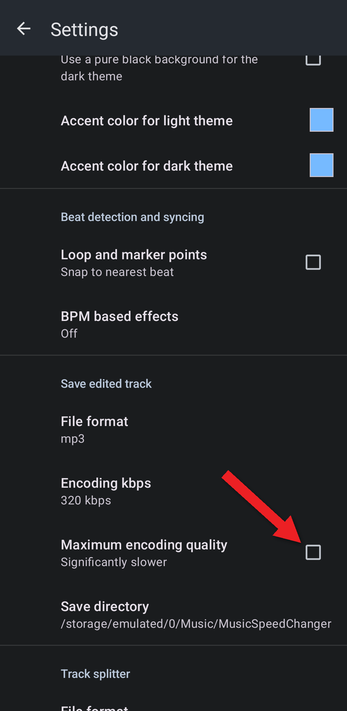
Tick Maximum encoding quality for the best possible MP3 quality. Saving takes significantly longer.
Save Location
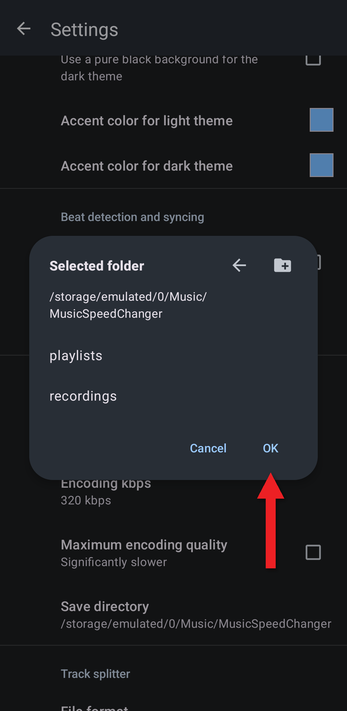
New files are saved in Music/MusicSpeedChanger on your device's internal storage by default. To change this, tap Save directory. Use the up arrow to move to a parent folder, tap a folder to open it, or use the create folder button to make a new one. When the folder you want is shown, tap OK.
The My Creations section of the app shows the files in your save folder, including any audio files you copy into it yourself.
How did we do?
Saving Edited Tracks
My Creations: Your Edited Tracks and Recordings
