Browsing Folders
Browse your music by folder in Music Speed Changer for Android, play or queue whole folders, and set a home directory.

Updated
by Steve Myers
Besides the Songs, Albums and Artists tabs, Music Speed Changer has a folder browser for finding music by where it's stored on your device and memory card. From it you can play a whole folder, add it to the playing queue or a playlist, and more.
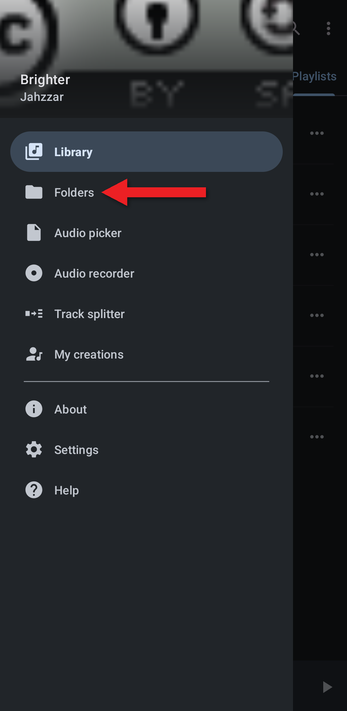
- Open the app menu (☰) and tap Folders.
- Folders opens in your home directory, which is the Music folder unless you change it. Tap a folder to open it. The path bar at the top shows where you are; tap any part of it to go back up. To browse your memory card or another storage location, tap the ⋮ menu and choose Storage locations.
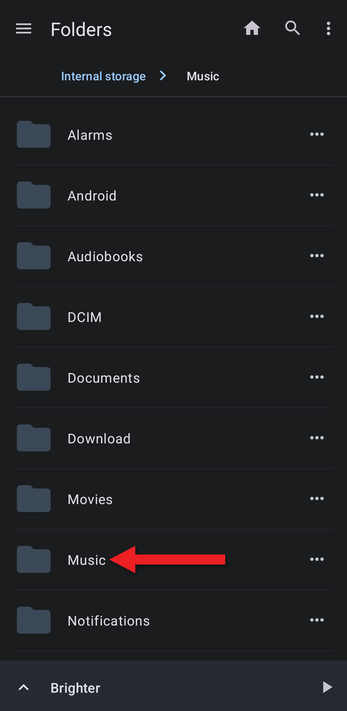
- Tap the … button next to a folder for more options.
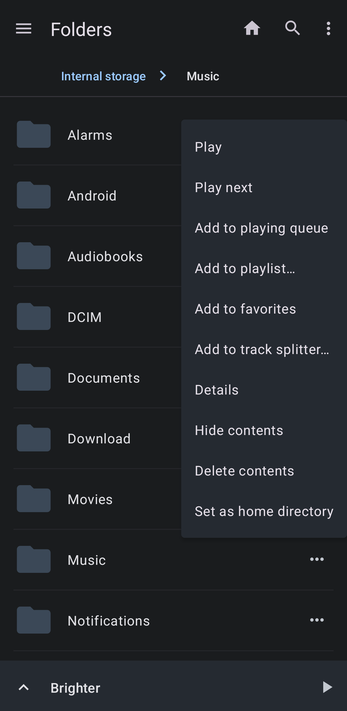
- Play, Play next and Add to playing queue play all the tracks in the folder.
- Add to playlist… adds them to a playlist.
- Hide contents hides the folder's tracks from the app (see Hiding Tracks and Folders).
- Delete contents deletes the audio files in the folder from your device.
- Set as home directory makes this the folder that Folders opens in. The house button at the top always takes you back to your home directory.
Inside a folder, tracks are listed by file name. Tap a track to play it, or tap its … button for the usual track options.
How did we do?
Searching for Songs
Editing Track Info and Artwork with the Tag Editor
