Making a Screen Recording of a Bug
How to make a screen recording with sound on Android to show us a problem in Music Speed Changer.

A screen recording of the problem, with the app's sound included if it's an audio problem, helps us reproduce and fix it much faster.
Android 11 and Newer
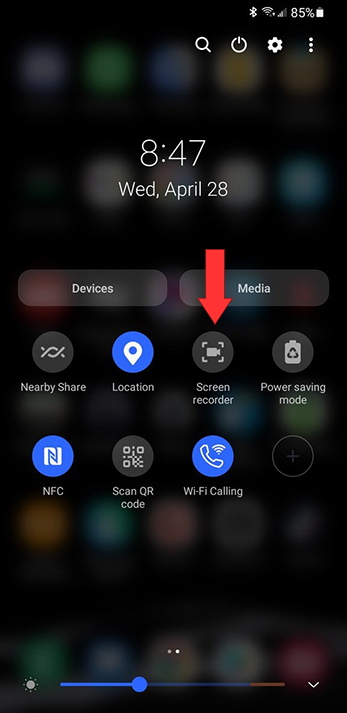
Android 11 and newer have a built-in screen recorder. Swipe down from the top of the screen to open Quick Settings and tap Screen recorder (called Screen record on some phones). If you don't see it, tap the edit (pencil) button in Quick Settings and add it.
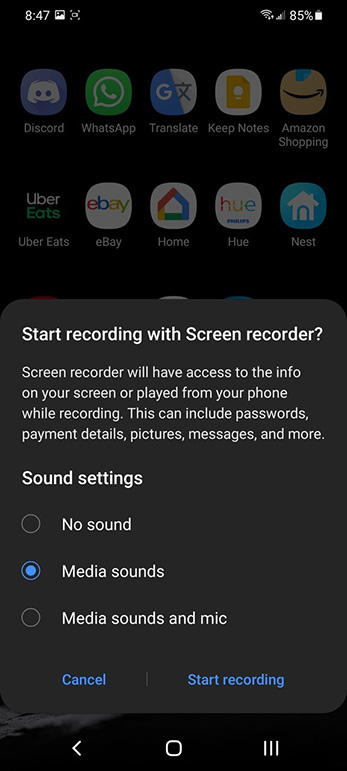
When the recorder asks about sound, choose Media sounds (or Device audio) so the app's audio is included in the recording.
Android 10 and Older
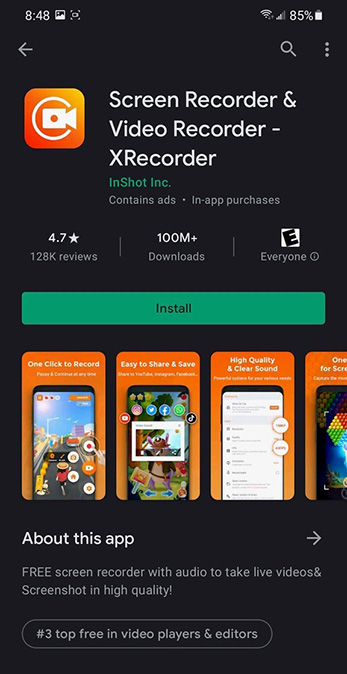
Older versions of Android don't have a built-in screen recorder, so you'll need a free app such as XRecorder.
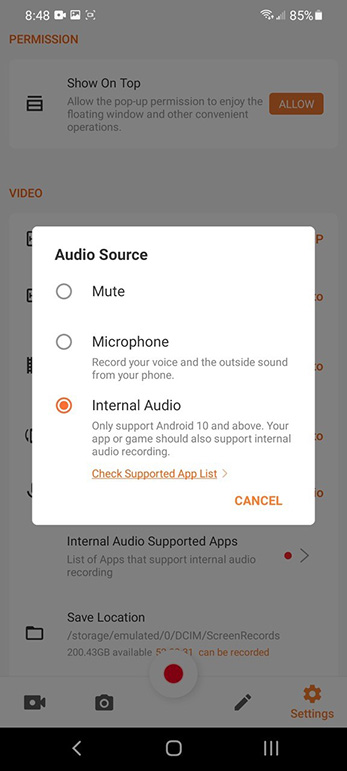
On Android 10, set XRecorder's Audio Source to Internal Audio before you start recording. Android 9 and older don't let apps record internal audio, so choose Microphone instead.
Sending Us the Recording
Email the recording to support@musicspeedchanger.com, together with your device model, your Android version, and the audio file that causes the problem. Submitting Bug Reports explains what else helps us.
How did we do?
Submitting Bug Reports
Ad Consent and Privacy Options (EU and UK)
