Track Splitter: Isolating Vocals and Instruments
Split songs into vocals, drums, bass, piano and more with the AI track splitter in Music Speed Changer for Android, for karaoke or practice.

The track splitter uses AI to separate a song into its parts, such as vocals, drums, bass and other instruments. Once a track is split, the Track isolation controls in the editor let you set the volume of each part separately: remove the vocals for karaoke, listen to the vocals on their own, or bring out the bass line you're learning.
The splitting happens on your device, so it works offline and your music never leaves your phone. It needs a 64-bit device with about 4 GB of memory or more; on other devices the track splitter isn't available.
Splitting a Track
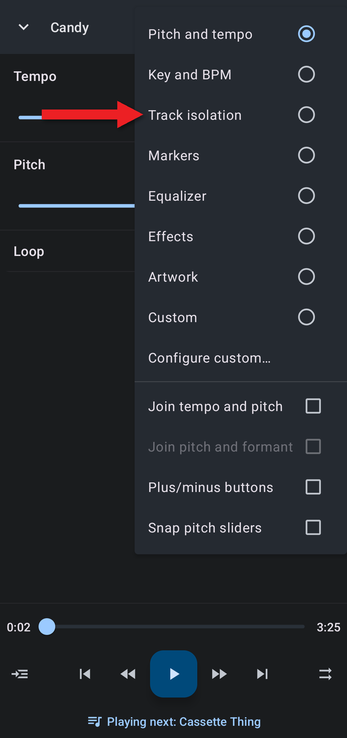
- Play the track and open the editor. Tap the Editor components button (the sliders icon at the top right) and choose Track isolation.
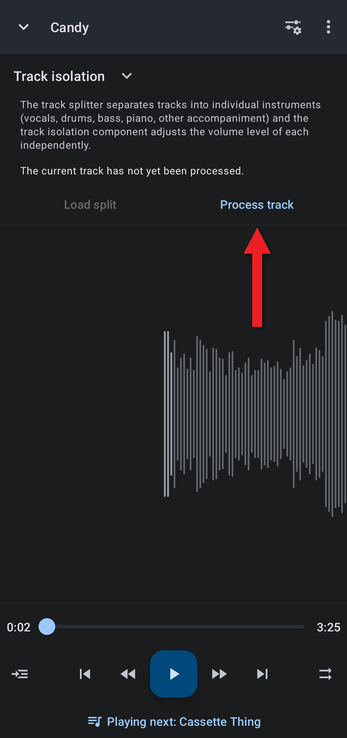
- Tap Process track. (You can also choose Add to track splitter… from a song's … menu or the editor's ⋮ menu.)
- The first time you use the splitter, the app downloads its AI models, about 200 MB. This only needs to be done once, so use Wi-Fi if you can.
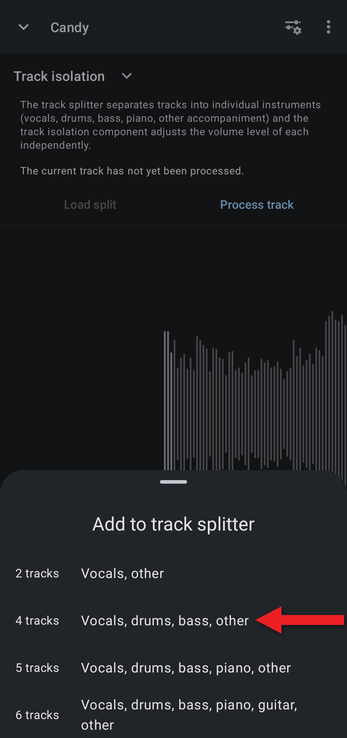
- Choose how many parts to split the track into:
- 2 tracks: vocals and everything else
- 4 tracks: vocals, drums, bass and other
- 5 tracks: vocals, drums, bass, piano and other
- 6 tracks (Pro): vocals, drums, bass, piano, guitar and other
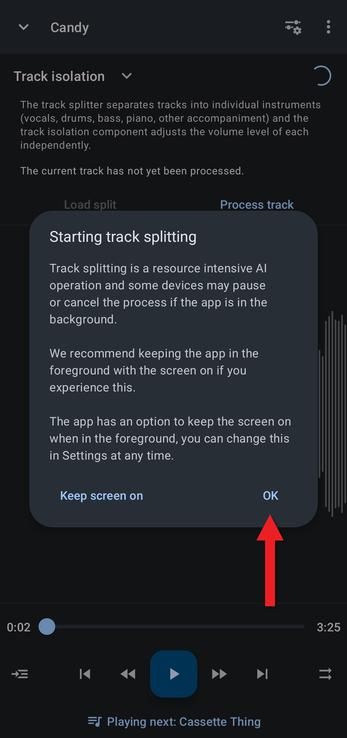
- The track is added to the splitting queue. The first time, the app explains that splitting is demanding, and that some phones pause it when the app is in the background. Tap Keep screen on to keep the screen on while the app is open, or OK.
A notification shows the progress, and another tells you when the split is finished. Splitting a song can take several minutes, depending on your device.
The Track Splitter Screen
To see the queue, open the app menu (☰) and tap Track splitter.
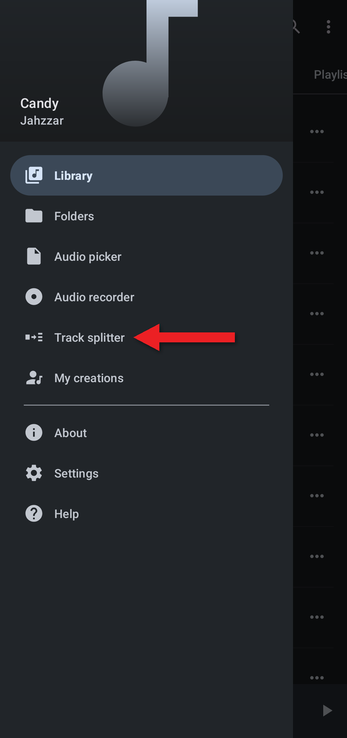
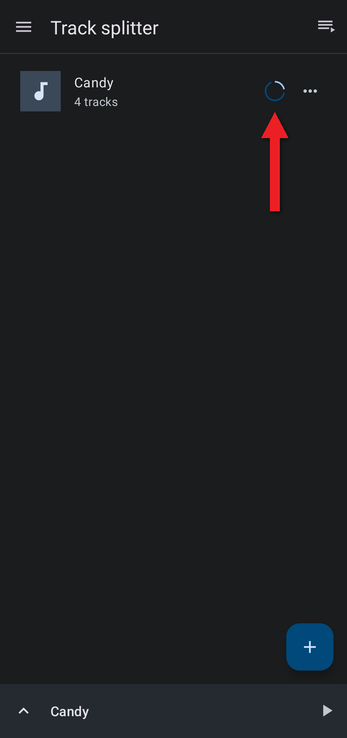
Tracks waiting to be split, and the one being split now, are listed here. Tap the + button to add an audio or video file that isn't in your library.
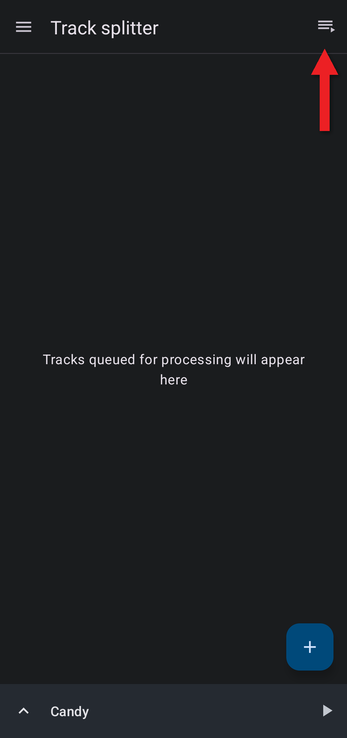
When a split is finished, it moves to the completed list. Tap the button at the top right to see it.
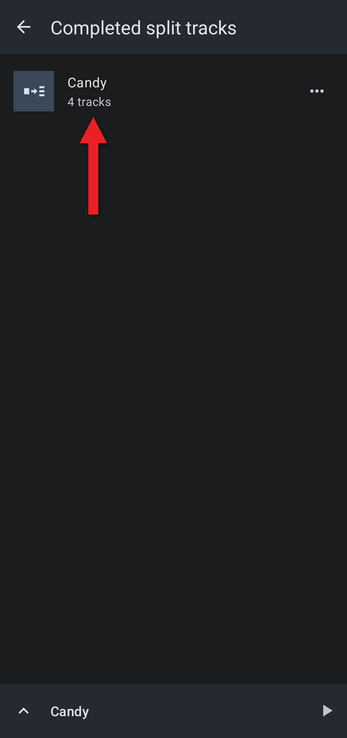
Tap a completed track to play the split version. Completed splits are also listed in My Creations, on the Split tracks tab.
Using Track Isolation
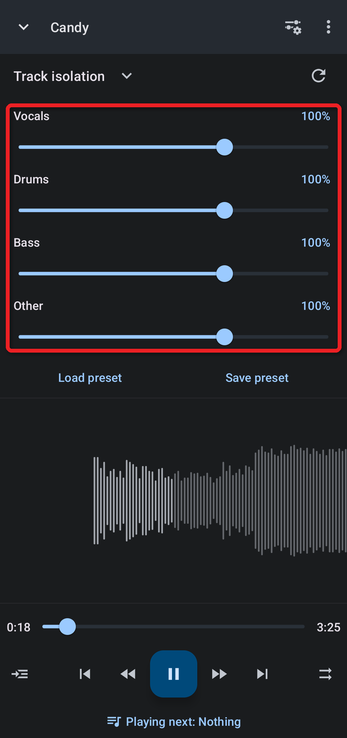
With a split track playing, the Track isolation component shows a slider for each part. Each one starts at 100%; drag it down to make that part quieter, or up to 150% to make it louder. The reset button returns every slider to 100%, and you can save your settings with Save preset.
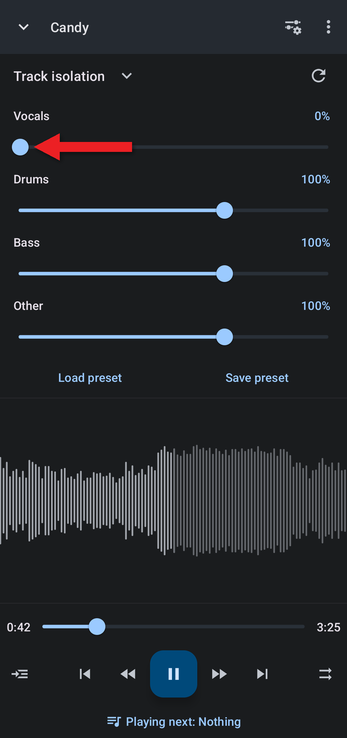
To remove the vocals (karaoke), drag Vocals to 0%.
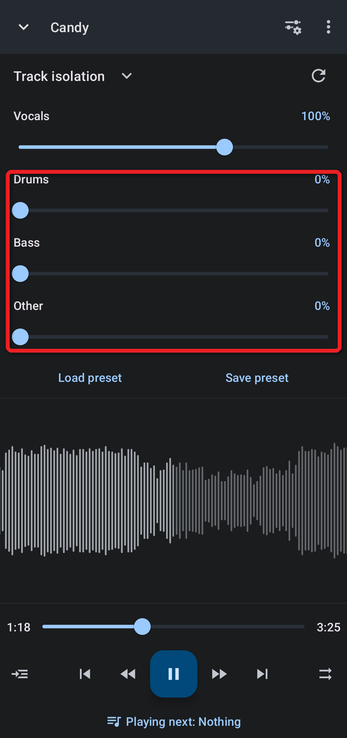
To hear only the vocals (a cappella), drag the other sliders to 0%.
You can combine track isolation with the tempo and pitch controls, for example to slow down a guitar part and turn the vocals down while you learn it.
Sharing Split Tracks
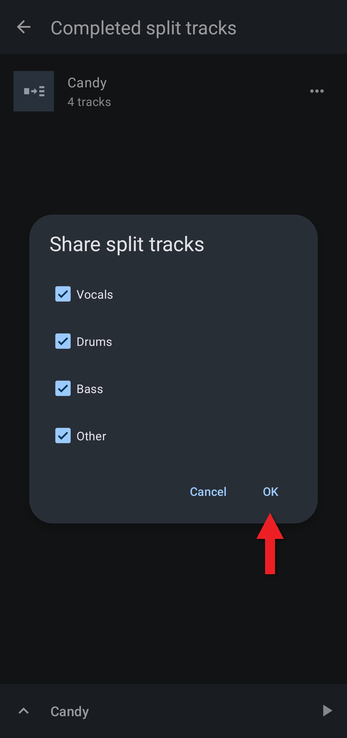
Split tracks are stored inside the app. To use the separate parts elsewhere, tap the … button next to a completed split and choose Share split tracks…. Tick the parts you want and tap OK.
File Format
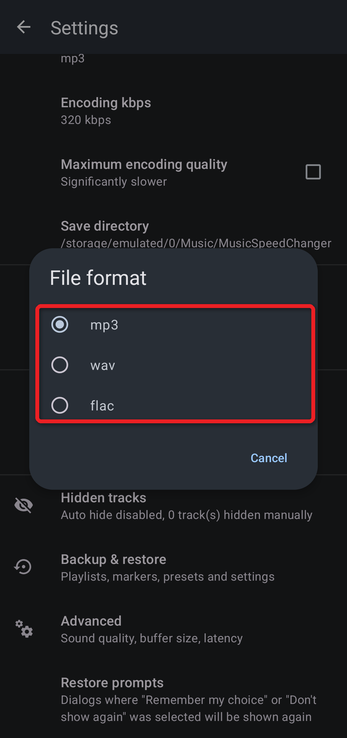
Split tracks are saved as MP3 by default. To use WAV or FLAC instead, open Settings, and under Track splitter tap File format. Change it before you add tracks to the splitter.
How did we do?
Snapping Loops and Markers to the Beat
Delayed Playback Start (Count-In)
