Backing Up and Restoring Playlists, Markers and Settings
Back up and restore your playlists, markers, presets and settings in Music Speed Changer for Android, or move them to a new phone.

Music Speed Changer keeps a backup of your playlists, markers, effect presets and settings. You can use it to move everything to a new phone, or to get it back after reinstalling the app. Your music files themselves aren't included; copy them to the new device separately.
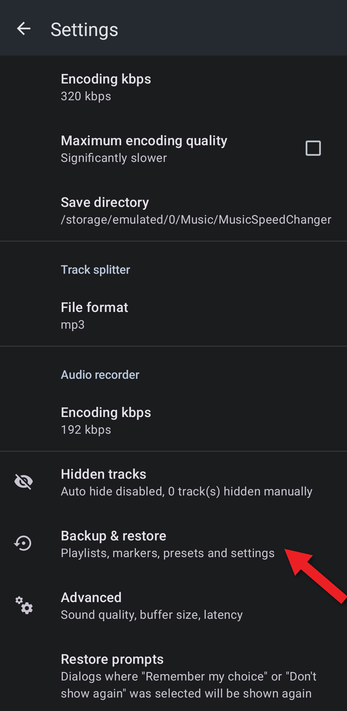
- Open the app menu (☰), tap Settings, scroll down and tap Backup & restore.
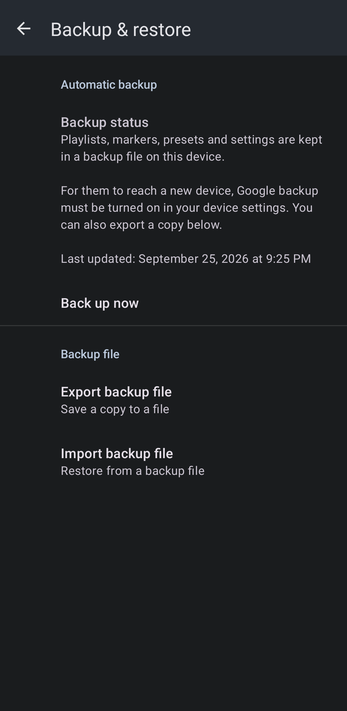
Automatic Backup
The app keeps its backup file up to date on your device automatically. Backup status shows when it was last updated. For the backup to reach a new device, Google backup must be turned on in your device's settings. Android then restores it when you install Music Speed Changer on your new phone and sign in with the same Google account.
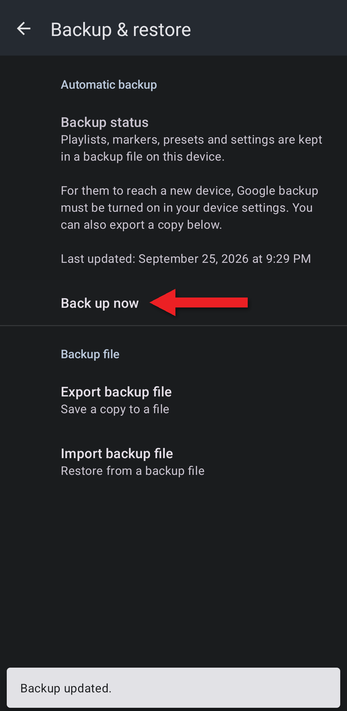
To update the backup right away, for example just before you switch phones, tap Back up now.
Saving a Backup File
You can also save a copy of the backup as a file, to move it yourself or keep it safe.
- Tap Export backup file.
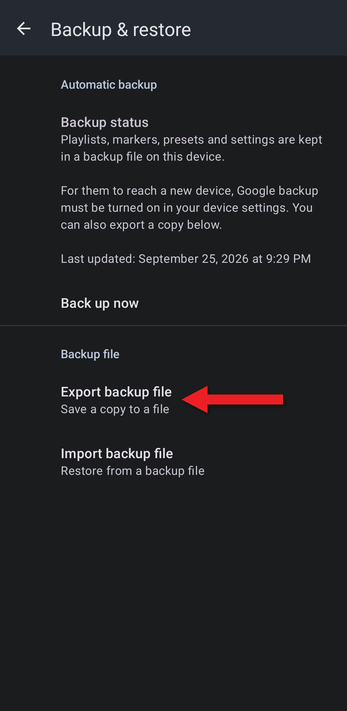
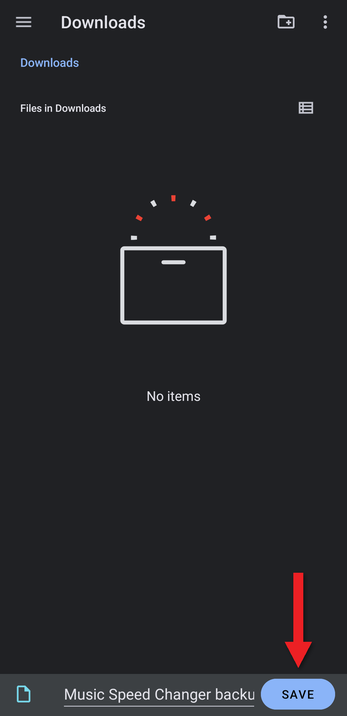
- Choose where to save it, such as your Downloads folder or Google Drive, and tap Save. The file is named "Music Speed Changer backup" followed by the date.
Restoring from a Backup File
- Copy the backup file to your new device, and install Music Speed Changer.
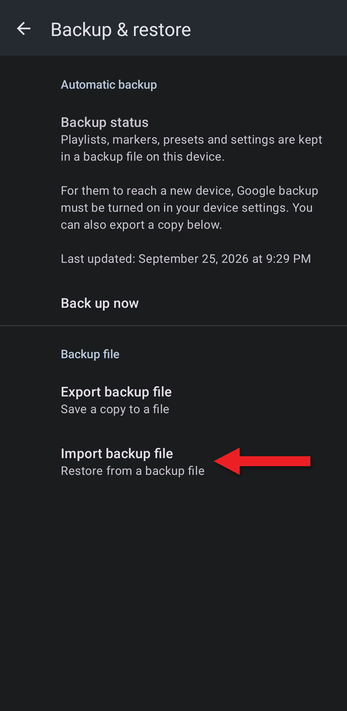
- Open Backup & restore and tap Import backup file, then choose the file.
- The app shows what the backup contains. Tap Import. The backup is added to what's already on the device; nothing is deleted.
Missing Tracks
The app matches the tracks in your backup with the music on your device, even if the files are stored in different folders. If some tracks aren't on the device yet, a Missing tracks section appears on the Backup & restore screen:
- Copy the missing music to your device, then tap Re-link missing tracks to connect it to your playlists and markers.
- If you don't have those tracks any more, tap Forget missing tracks to remove them from your playlists and markers.
Related Articles
How did we do?
Playing Audio Over Other Apps
Advanced Audio Settings: Sound Quality, Buffer Size and Latency
