Transposing Music to Another Key
Transpose a song to another key with Music Speed Changer for Android: show the key, snap pitch to semitones and shift it step by step.

Transposing moves every note in a piece of music up or down by the same interval. Music in a major key can be transposed to any other major key, and music in a minor key to any other minor key. Music Speed Changer makes transposing easy: it shows the track's key and can snap the pitch to whole semitones.
For shifts of less than a semitone, such as retuning to 432 Hz, see Converting 440 Hz Music to 432 Hz or 528 Hz.
Showing the Key
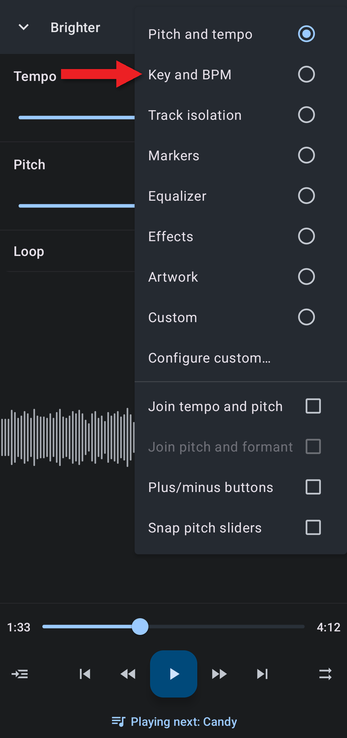
- In the editor, tap the Editor components button (the sliders icon at the top right) and choose Key and BPM.
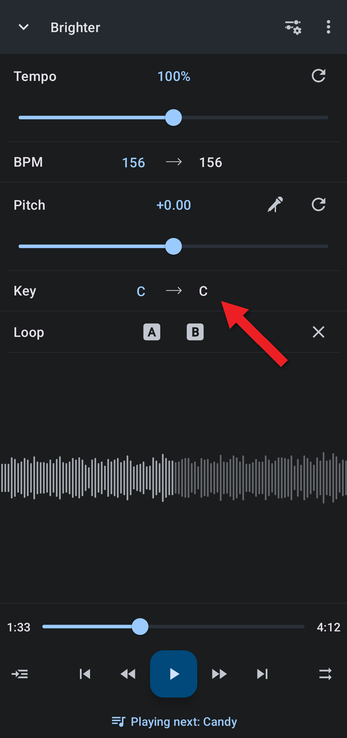
- The editor now shows the BPM and the key. In the Key row, the value on the left is the key detected for the track, and the value on the right is the key after your pitch change.
You can also add the key to your own editor layout: choose Configure custom… and tick Musical key. See Using the Editor and Customizing Its Layout.
Snapping the Pitch to Semitones
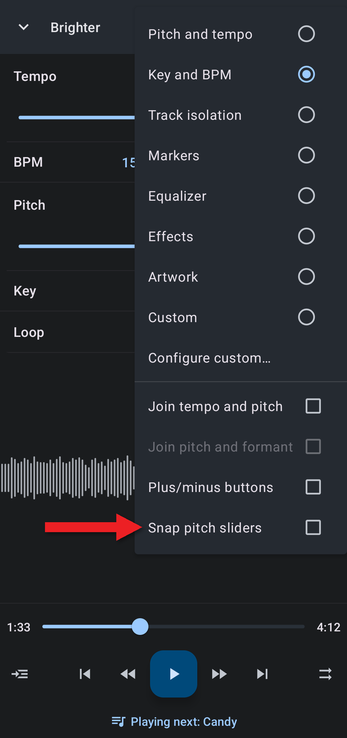
Open the Editor components menu and tick Snap pitch sliders. The pitch slider now moves in whole semitones, which is what you want for changing key.
Transposing the Track
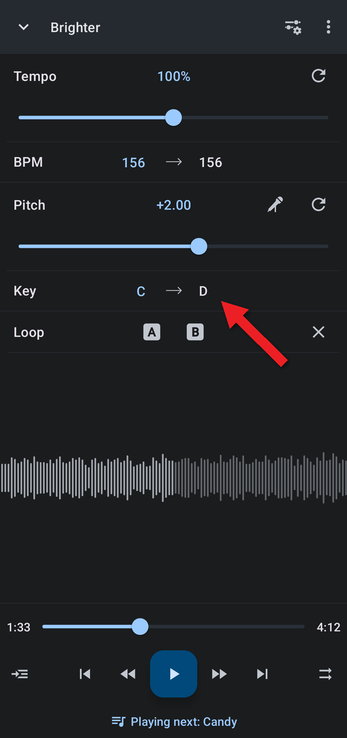
Drag the pitch slider. Each step shifts the whole track by one semitone, and the key display changes as you go. +12 or −12 semitones is a full octave. You can also tap the Pitch value and type the number of semitones.
Correcting the Detected Key
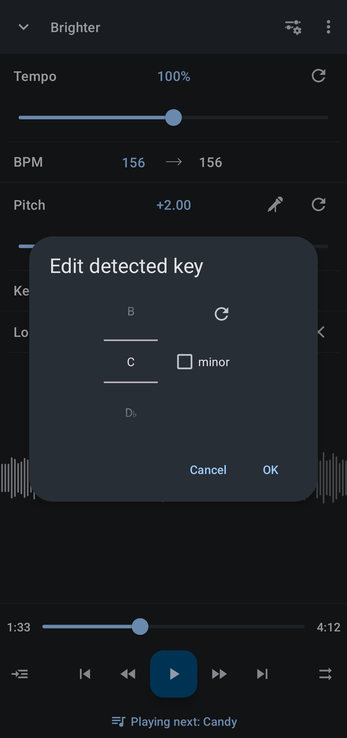
If the detected key is wrong, tap it (the value on the left). In Edit detected key, scroll to the right note, tick minor for a minor key, and tap OK. The reset button returns to the detected key.
How did we do?
Converting 440 Hz Music to 432 Hz or 528 Hz
Tips for Practicing a Musical Instrument
