Using the Editor and Customizing Its Layout
Open the Music Speed Changer editor on Android and choose what it shows: presets like Key and BPM, Markers and Equalizer, or your own custom layout.

The editor is where you change a track's tempo and pitch, loop sections, add effects and more. You can choose which controls it shows, using ready-made layouts or your own custom layout.
Opening the Editor
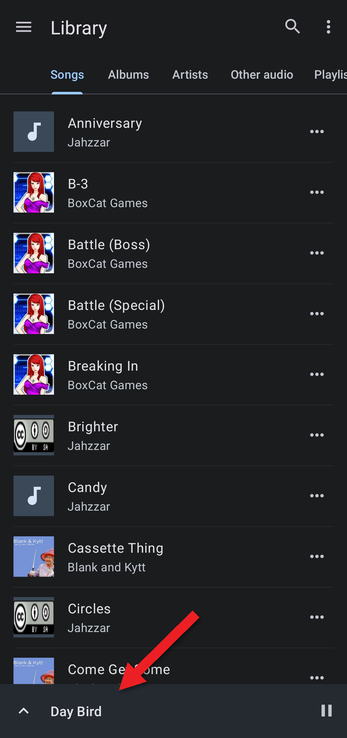
The app opens to the Library. Tap a track to start playing it; its name appears in the mini player at the bottom of the screen. Tap the mini player, or swipe it up, to open the editor.
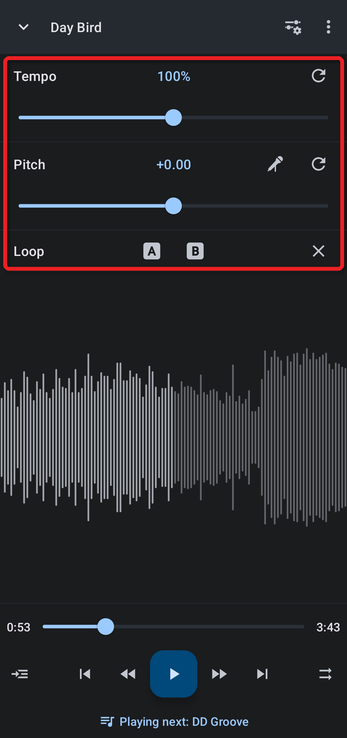
By default, the editor shows the Tempo and Pitch controls and the A/B Loop buttons. Here you can adjust the pitch and tempo or set A/B loops. To close the editor, tap the arrow at the top left or press Back.
Choosing a Layout
Tap the Editor components button (the sliders icon at the top right) to choose a layout:
- Pitch and tempo: the default layout.
- Key and BPM: adds the BPM and musical key.
- Track isolation: volume controls for the parts of a split track.
- Markers: adds markers.
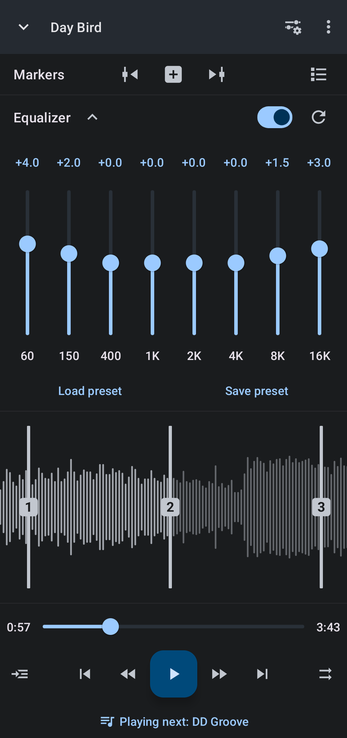
- Equalizer: the preamp, balance and equalizer.
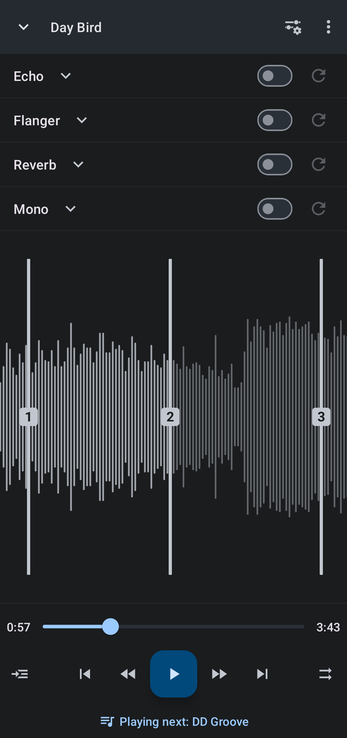
- Effects: all the audio effects.
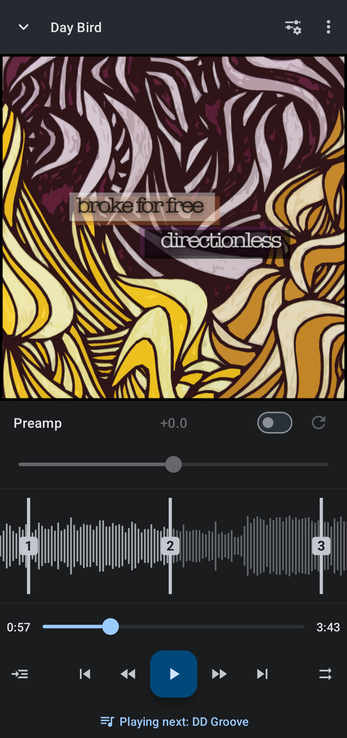
- Artwork: the track's artwork.
- Custom: your own selection of components.
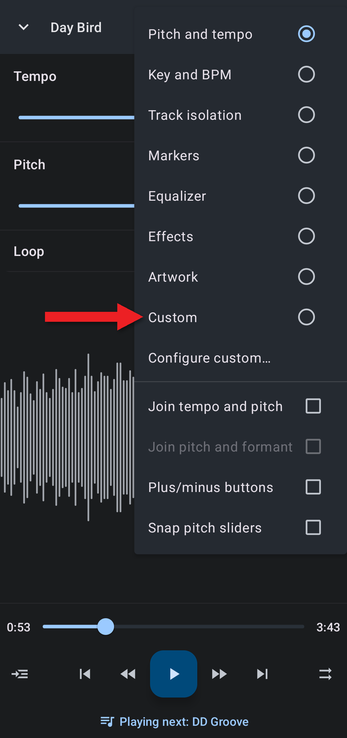
The same menu has options to join tempo and pitch into rate, show plus/minus buttons and snap the pitch slider to semitones.
Creating a Custom Layout
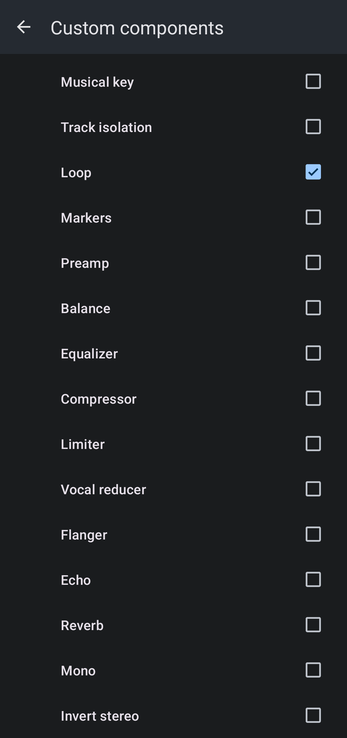
- In the Editor components menu, choose Configure custom….
- Turn on the switch at the top so it reads Using. (Choosing any other layout later turns it off again; choose Custom to go back to your layout.)
- Tick every component you want to see. Tempo / Rate, Pitch / Formant and Loop are ticked to start with.
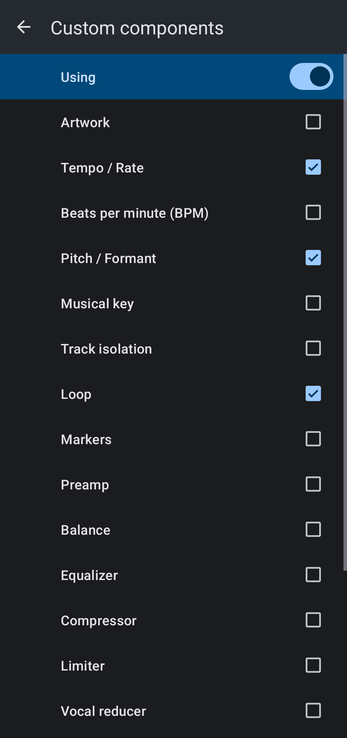
The full list is: Artwork, Tempo / Rate, Beats per minute (BPM), Pitch / Formant, Musical key, Track isolation, Loop, Markers, Preamp, Balance, Equalizer, Compressor, Limiter, Vocal reducer, Flanger, Echo, Reverb, Mono and Invert stereo.
Example Layouts
Add as few or as many components as you like. Here are some ideas.
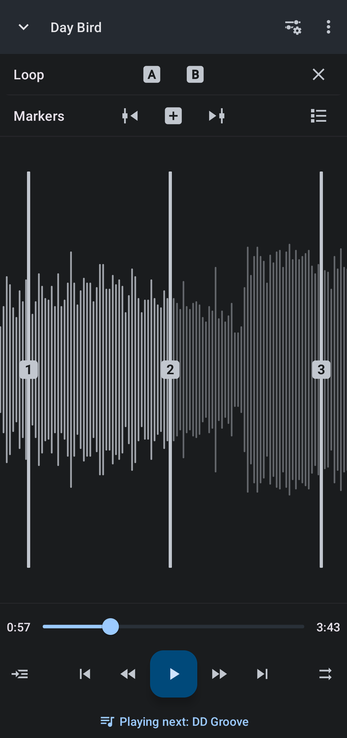
Practice Tool: Loop and Markers
Everything you need to learn a tricky part. See Tips for Practicing a Musical Instrument.
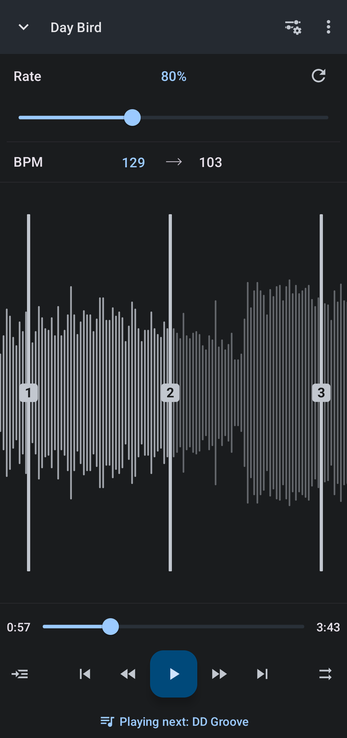
Nightcore Editor: Rate and BPM
Tick Tempo / Rate, Pitch / Formant and BPM, then turn on Join tempo and pitch. See Making Nightcore.
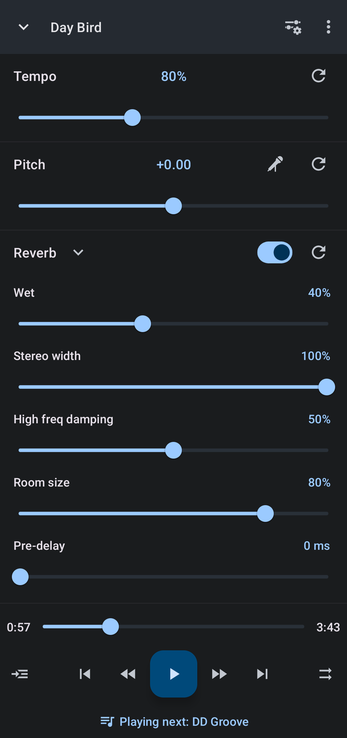
Slowed + Reverb Editor
Tick Tempo / Rate, Pitch / Formant and Reverb. See Making Slowed + Reverb Music. For a darker look, try dark mode.
Markers and Equalizer
Echo, Flanger, Reverb and Mono
You don't have to include the tempo and pitch controls at all. Untick them and add only the components you need.
Artwork and Preamp Only
For an overview of all the components, watch the Editor Components Video.
How did we do?
Getting Started with Music Speed Changer
Frequently Asked Questions (FAQ)
