Audio Effects: Vocal Reducer, Reverb, Echo and More
Overview of the audio effects in Music Speed Changer for Android: vocal reducer, compressor, limiter, echo, flanger, reverb, mono and presets.

Music Speed Changer comes with eight audio effects: Vocal reducer, Compressor, Limiter, Echo, Flanger, Reverb, Mono and Invert stereo. This article gives an overview of each one and shows how to save your favorite settings as presets.
Showing the Effects
In the editor, tap the Editor components button (the sliders icon at the top right) and choose Effects.
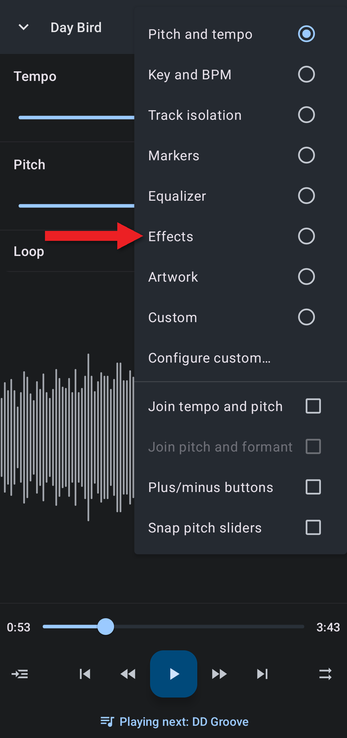
The editor now lists all the effects. If you only use a few of them, you can add just those to a custom layout instead: choose Configure custom… in the same menu (see Using the Editor and Customizing Its Layout).
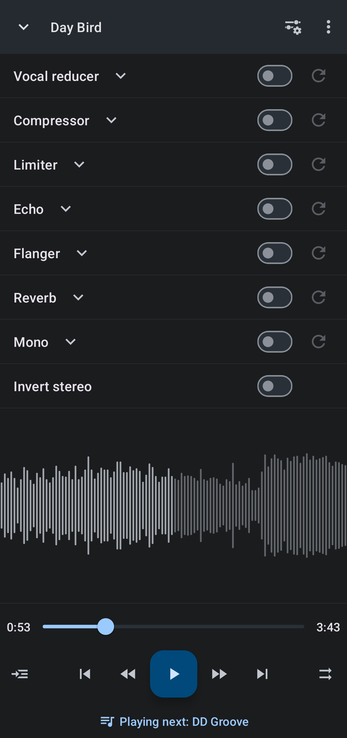
Each effect is off until you turn on its switch. Tap the arrow next to an effect's name to show or hide its settings, and tap the reset button at the end of the row to return the settings to their defaults.
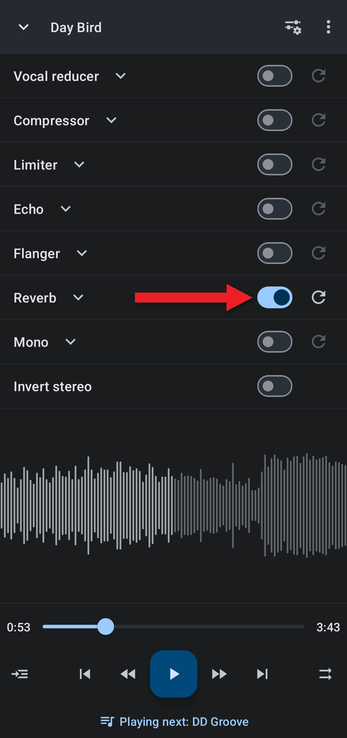
The Effects
Vocal Reducer
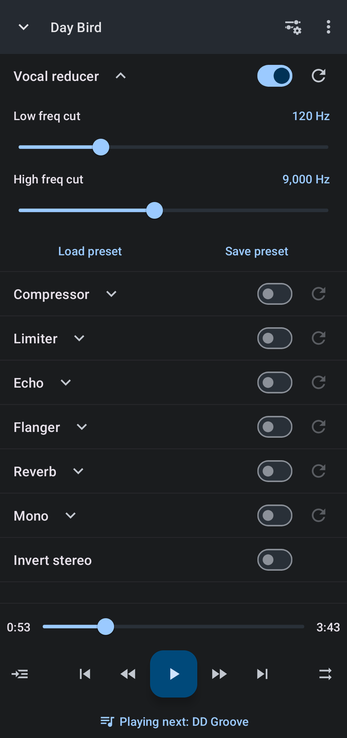
The vocal reducer tries to remove vocals and other instruments that are panned to the center of the mix, between the Low freq cut and High freq cut frequencies. It uses the well-known "invert and mix" method, so the result is a mono track. Singers use it to practice over the backing music, and it can turn almost any track into a karaoke track. For cleaner results, try the track splitter.
Compressor
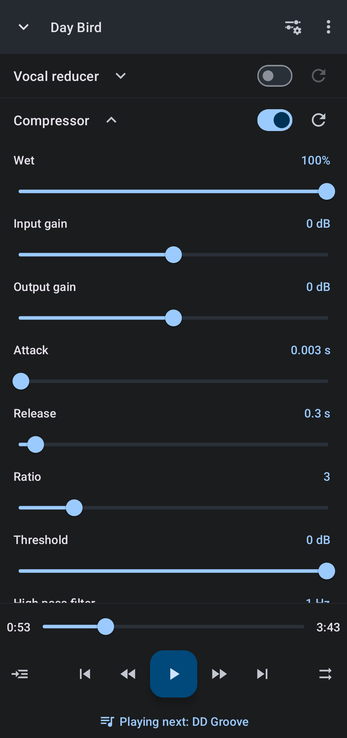
The compressor narrows a track's dynamic range, bringing the loud and quiet parts closer together in level. It evens out tracks where some parts are much too loud or too quiet. Its settings are Wet, Input gain, Output gain, Attack, Release, Ratio, Threshold and High pass filter.
Limiter
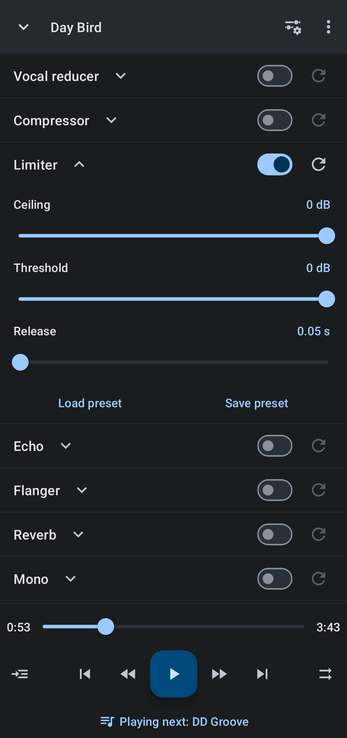
The limiter lets sound below a set level pass through unchanged and turns down the peaks that go above it. Use it to tame sharp spikes and to prevent clipping when you boost the volume. Its settings are Ceiling, Threshold and Release.
Echo
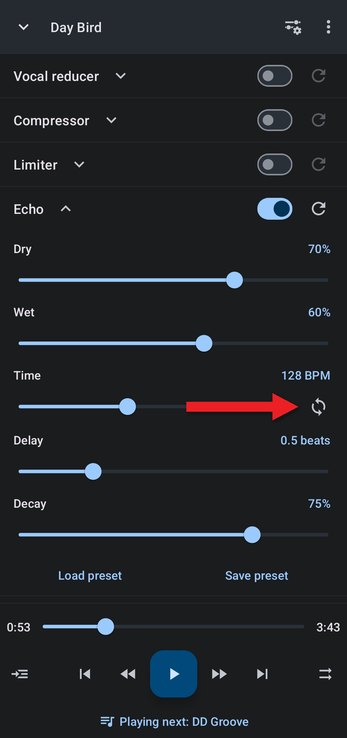
Echo mixes delayed copies of the sound back in, like sound reflecting off a distant wall. The Time setting is based on beats per minute: tap the sync button next to it to match the echo to the tempo of the playing track. Its other settings are Dry, Wet, Delay and Decay.
Flanger
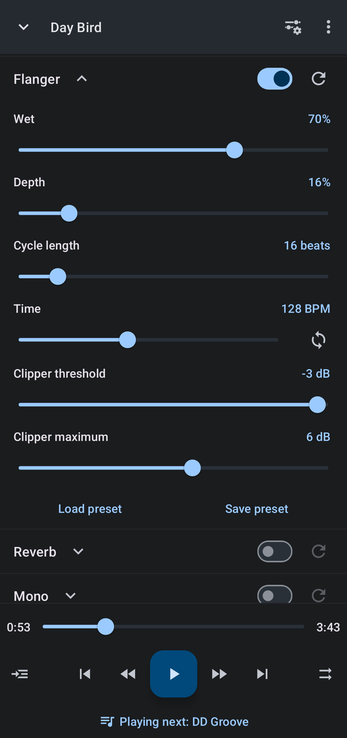
The flanger mixes two copies of the track, one of them playing with a very short, slowly changing delay. This creates the classic sweeping "jet plane" sound. Like Echo, its Time setting can be synced to the track's tempo. Its other settings are Wet, Depth, Cycle length, Clipper threshold and Clipper maximum.
Reverb
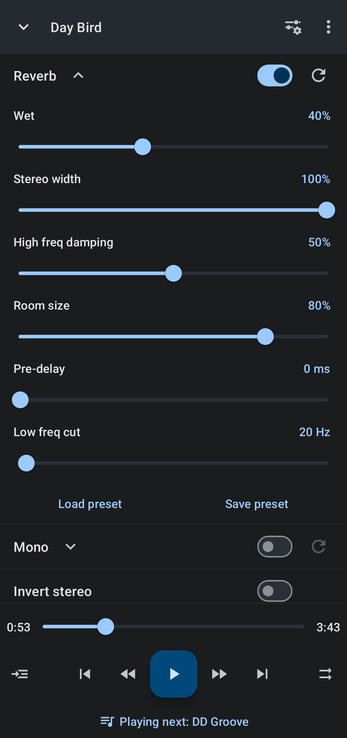
Reverb simulates sound bouncing off the walls of a room or hall. It's often used to change the mood of a track, as in slowed + reverb music. Its settings are Wet, Stereo width, High freq damping, Room size, Pre-delay and Low freq cut.
Mono
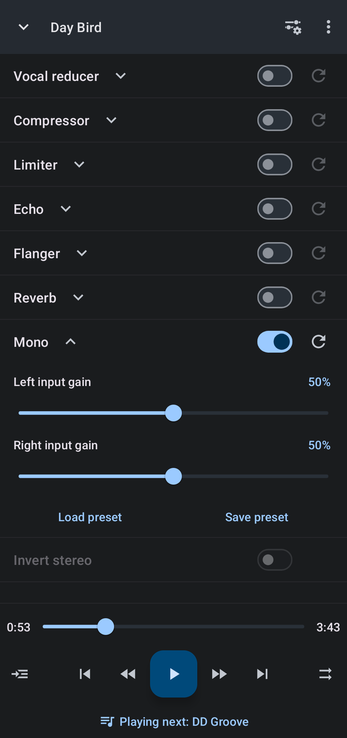
Mono mixes the left and right channels into a single channel, as if the recording had been made with one microphone. Left input gain and Right input gain set how much of each side goes into the mix.
Invert Stereo
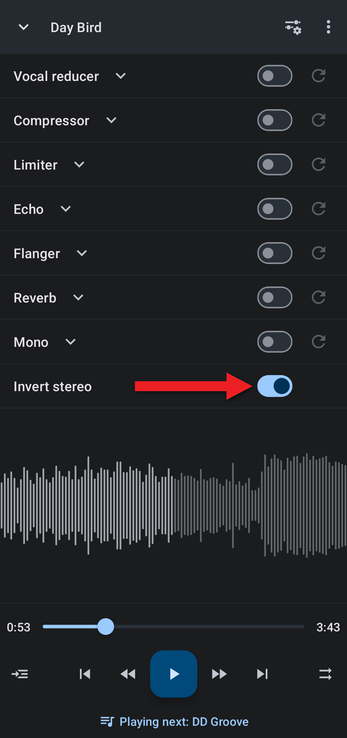
Invert stereo swaps the left and right channels. It has no settings, only an on/off switch, and it isn't available while Mono is on.
Saving and Loading Presets
You can save as many presets as you like for each effect.
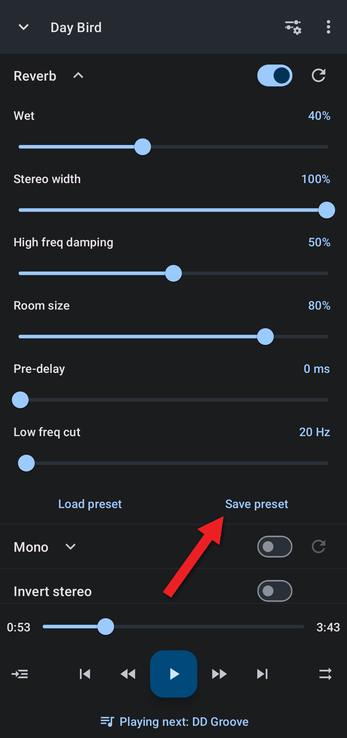
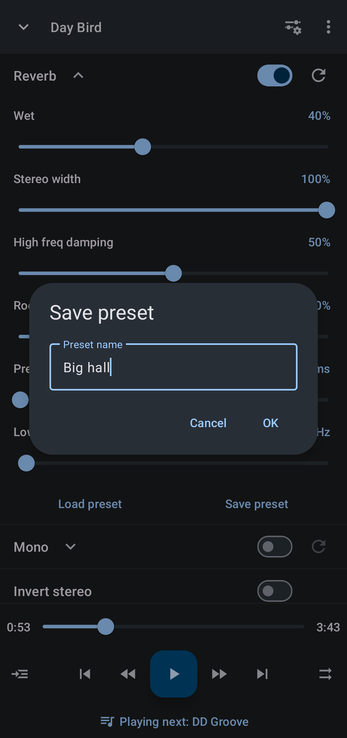
- Open the effect's settings and tap Save preset.
- Type a name and tap OK.
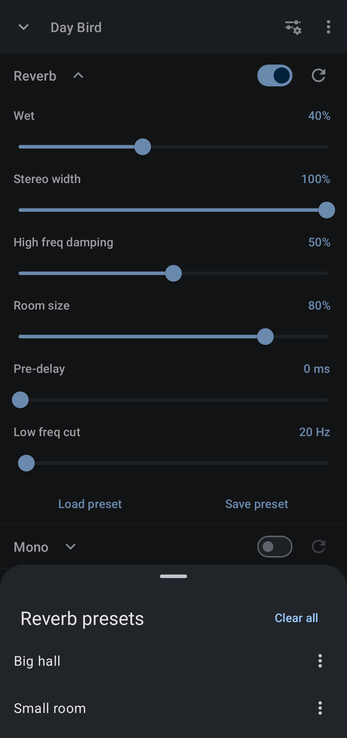
- To use a preset later, tap Load preset and choose it from the list.
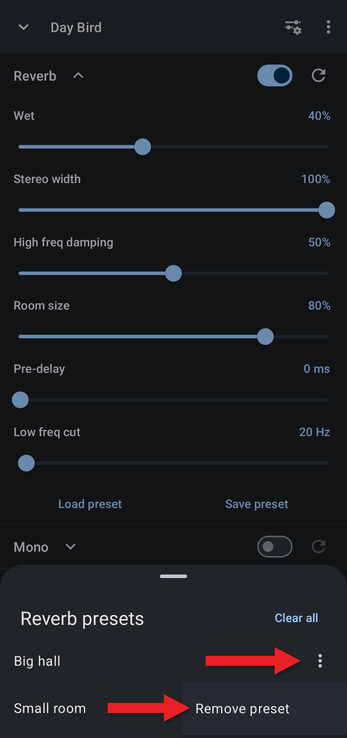
To delete a preset, tap the ⋮ button next to it and choose Remove preset. To delete every preset for that effect, tap Clear all twice.
How did we do?
Balance: Left and Right Output
Using an External Equalizer or Effects App
