Adjusting Pitch and Tempo Precisely
Set pitch and tempo exactly in Music Speed Changer for Android: type values, use plus/minus buttons, snap to semitones or 5%, and change the ranges.

Music Speed Changer gives you several ways to set the pitch and tempo exactly: drag the sliders, type an exact value, step with plus/minus buttons, or snap the sliders to whole semitones and multiples of 5%. You can also change the slider ranges.
Using the Sliders
In the editor, drag the Pitch slider right to raise the pitch or left to lower it. The number above the slider is the pitch change in semitones. The Tempo slider works the same way and shows the speed as a percentage of the original. To go back to the original, tap the reset button at the end of the row.
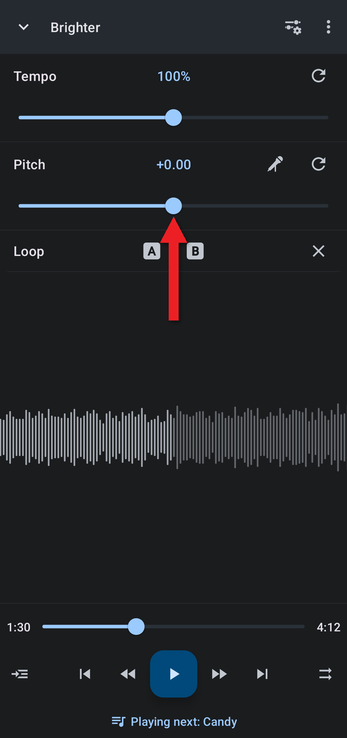
Typing an Exact Value
Tap the Pitch or Tempo value above its slider. Type the number of semitones (or the tempo percentage) and tap OK. Decimal values such as −0.3177 are allowed.
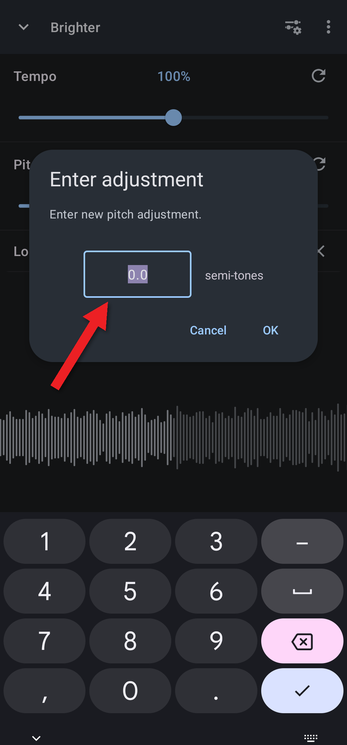
Plus/Minus Buttons
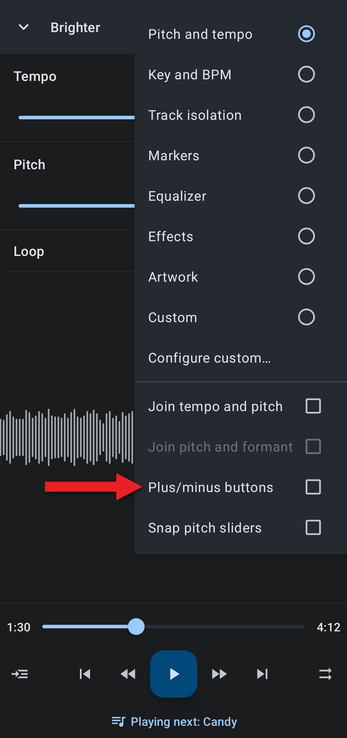
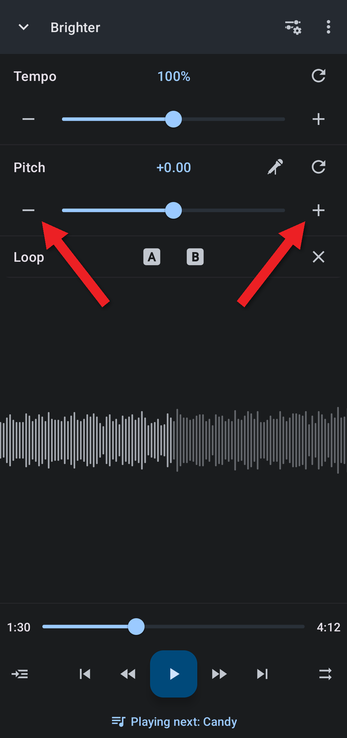
For fine control, turn on plus and minus buttons at the ends of the sliders. Tap the Editor components button (the sliders icon at the top right of the editor) and tick Plus/minus buttons. You'll also find this option in Settings under Editor controls.
Tap − or + to lower or raise the value in small steps.
Tempo, Pitch and Formant Settings
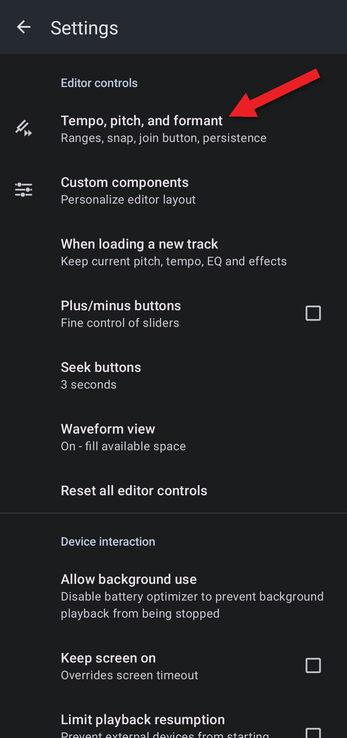
More options are in Settings. In the editor, tap the ⋮ menu, then Settings, and tap Tempo, pitch, and formant.
Snapping to Semitones and 5% Steps
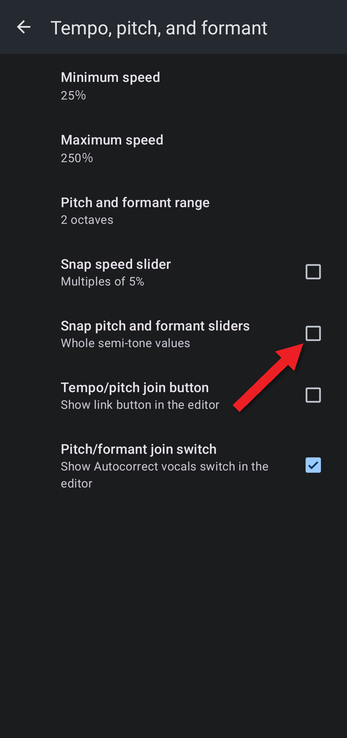
- Snap pitch and formant sliders makes the pitch slider move in whole semitones, which is ideal for changing key. The same option is available in the Editor components menu as Snap pitch sliders.
- Snap speed slider makes the tempo slider move in multiples of 5%. With plus/minus buttons turned on as well, each tap of − or + changes the speed by exactly 5%.
Changing the Ranges
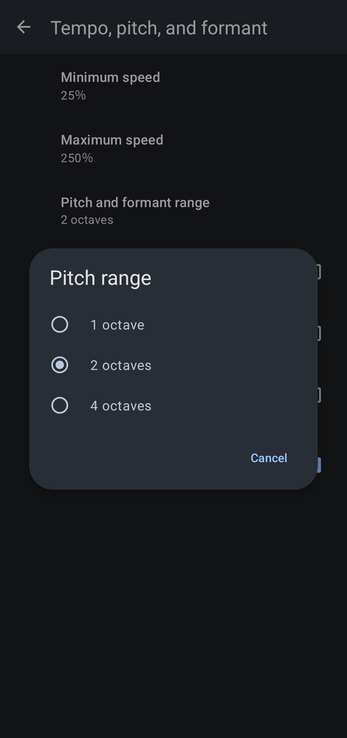
- Pitch and formant range sets how far the pitch slider goes: 1, 2 (the default) or 4 octaves.
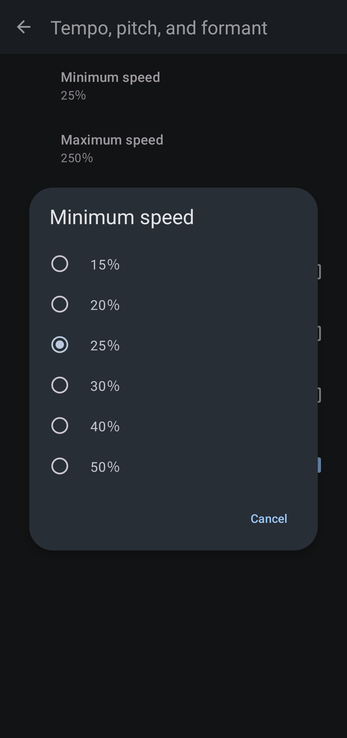
- Minimum speed sets the slowest tempo: 15%, 20%, 25% (the default), 30%, 40% or 50%.
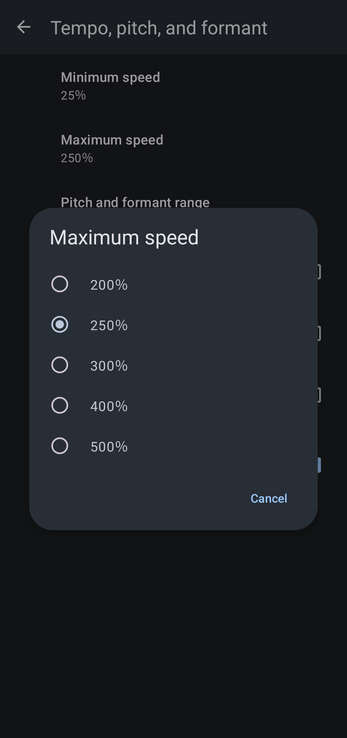
- Maximum speed sets the fastest tempo: 200%, 250% (the default), 300%, 400% or 500%.
Join Button and Autocorrect Switch
- Tempo/pitch join button shows a link button in the editor for joining pitch and tempo into rate.
- Pitch/formant join switch shows the Autocorrect vocals switch in the editor, used for formant correction.
Keeping Your Settings for the Next Track
To choose whether your pitch and tempo stay the same, reset, or are remembered for each track when a new track loads, see Keeping or Resetting Adjustments When a New Track Loads.
How did we do?
Joining Pitch and Tempo into Rate
